
- Authors

1. Two Ways to Create Images
1.1 The Easiest Way — Gemini Chat
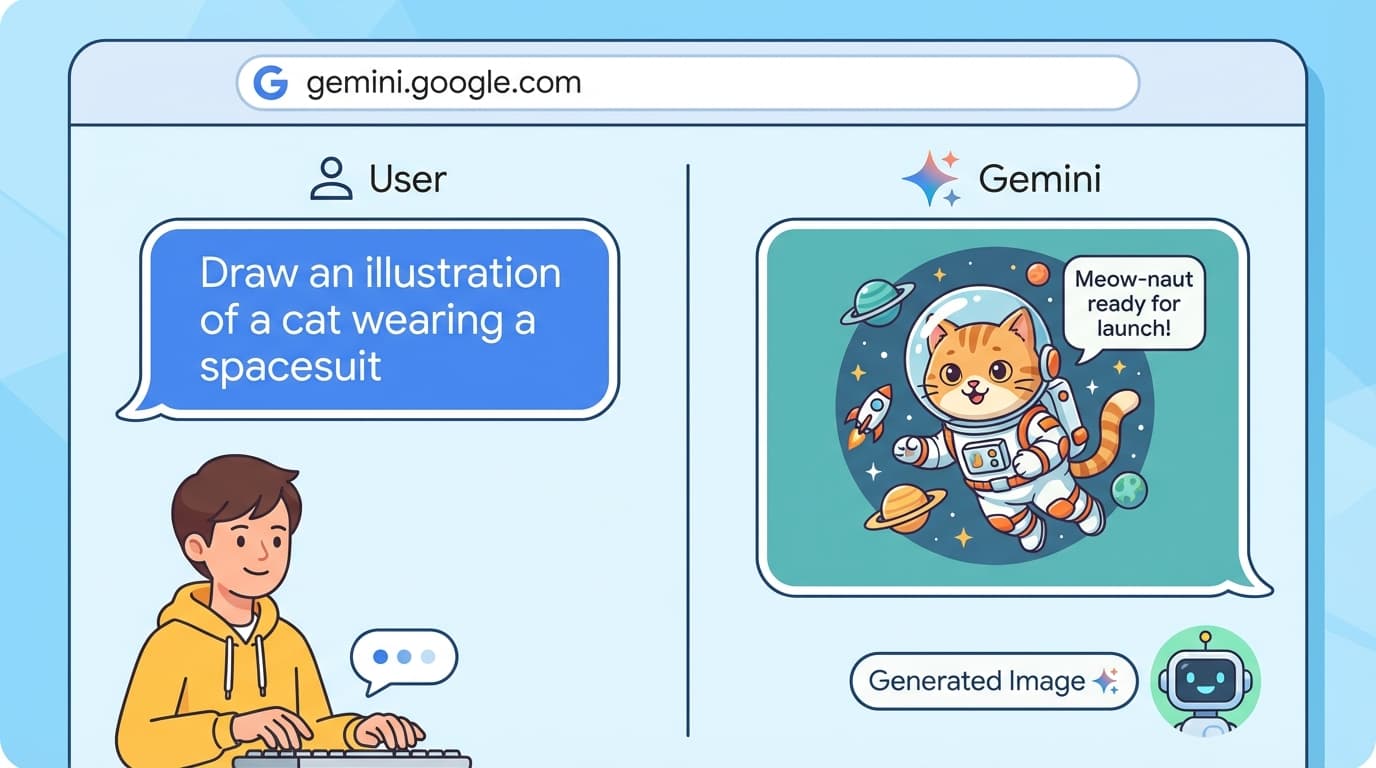
The simplest way to create images is by chatting on the Gemini website (gemini.google.com).
Type "Draw an illustration of a cat wearing a spacesuit" and the AI will create an image right away. No setup needed — just log in and start using it.
1.2 Limitations of Chat
Chat is convenient for making a few quick images. But for real-world use, there are some limitations.
Visible watermarks are added. When you download images created through chat, they include a visible watermark. This makes them hard to use in portfolios or actual projects.
No automation. If you need 100 images, you have to enter 100 prompts, download 100 times, and rename 100 files.
Limited settings. You can't directly control detailed options like resolution, aspect ratio, or the number of reference images.
1.3 The More Powerful Way — API
The way to go beyond these limitations is the API. When you use the API directly, you can create images without watermarks, automate the process, and freely adjust detailed settings.
If you're not sure what an API is, read What Is an API? first. It also covers how to get an API key.
2. Gemini Image Model — Nano Banana
2.1 What Is Nano Banana?
Google's image generation AI model has the codename "Nano Banana".
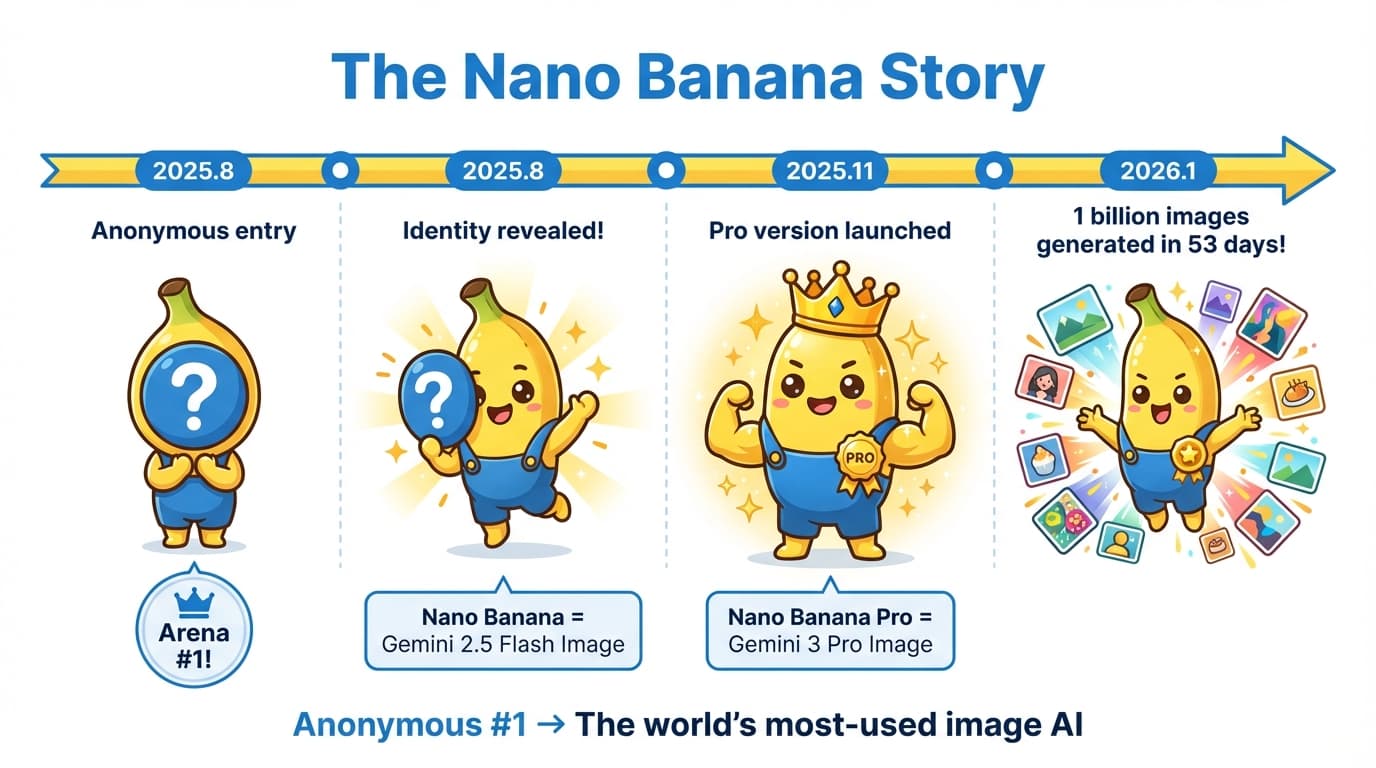
In August 2025, Google anonymously released an AI image generation model. It took first place on a platform where people vote on "which AI makes the best images" (Chatbot Arena) while hiding its identity, and the codename used was "Nano Banana".
When its identity was later revealed, it turned out that Gemini 2.5 Flash Image = Nano Banana. Since then, successor models have been released — Nano Banana 2 and Nano Banana Pro.
2.2 Three Models
Currently, there are three Gemini image generation models.
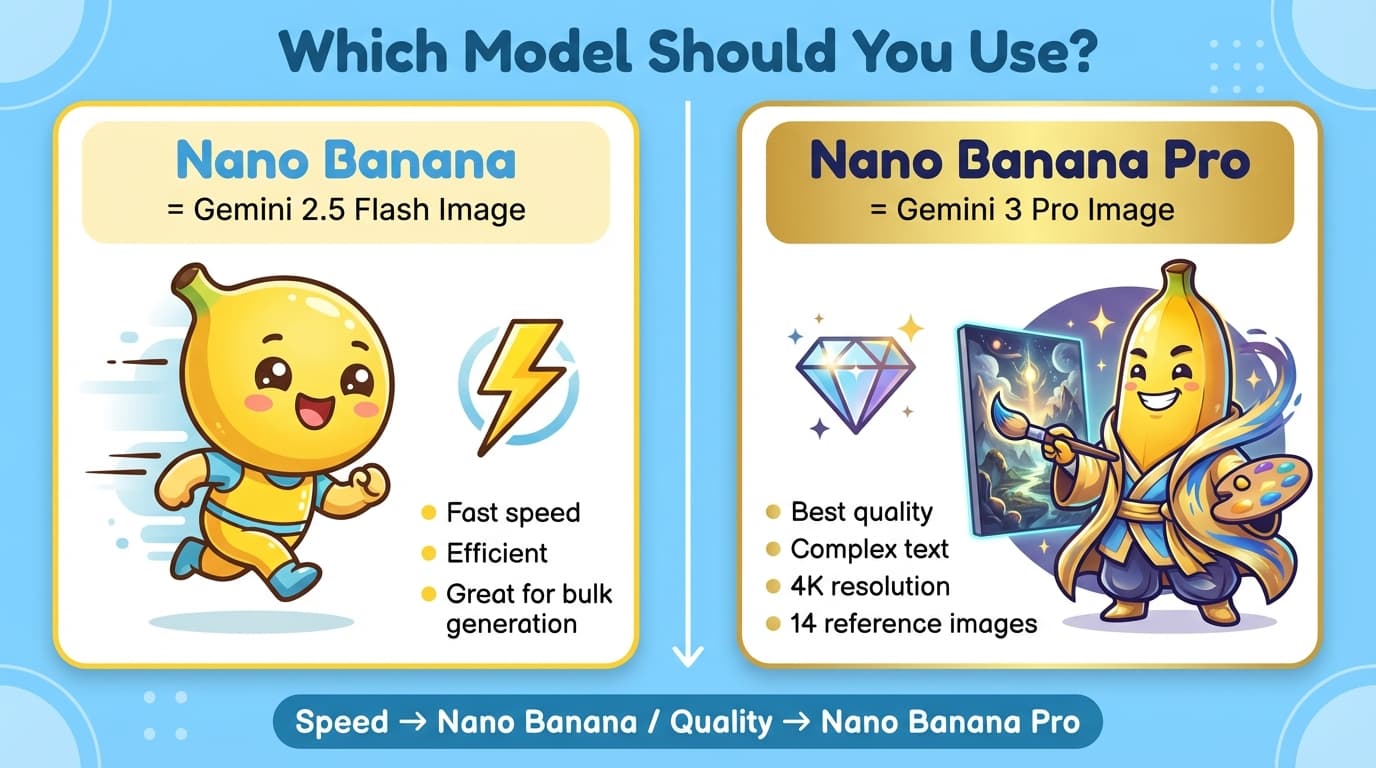
| Nano Banana | Nano Banana 2 | Nano Banana Pro | |
|---|---|---|---|
| Official Name | Gemini 2.5 Flash Image | Gemini 3.1 Flash Image | Gemini 3 Pro Image |
| API Model ID | gemini-2.5-flash-image | gemini-3.1-flash-image-preview | gemini-3-pro-image-preview |
| Features | Fast speed, efficient | Fast speed + search integration | Best quality, complex tasks |
| Resolution | Standard | 0.5K / 1K / 2K / 4K | 1K / 2K / 4K |
| Reference Images | Supported | Up to 14 | Up to 11 |
| Text Rendering | Basic | Improved | Accurate even with complex text |
| Best For | Bulk generation, rapid prototyping | Bulk generation + latest features | Final deliverables, high-quality assets |
2.3 Which Model Should You Choose?
- Want to generate many images quickly? → Nano Banana 2 (latest Flash model)
- Final quality matters most? → Nano Banana Pro
- Not sure? → We recommend Nano Banana Pro (the quality difference is noticeable)
3. Asking Claude Code to Build a Program
3.1 Creating an Image Generation Program
Now you're ready. With your API key in hand, you can ask Claude Code to build an image generation program.
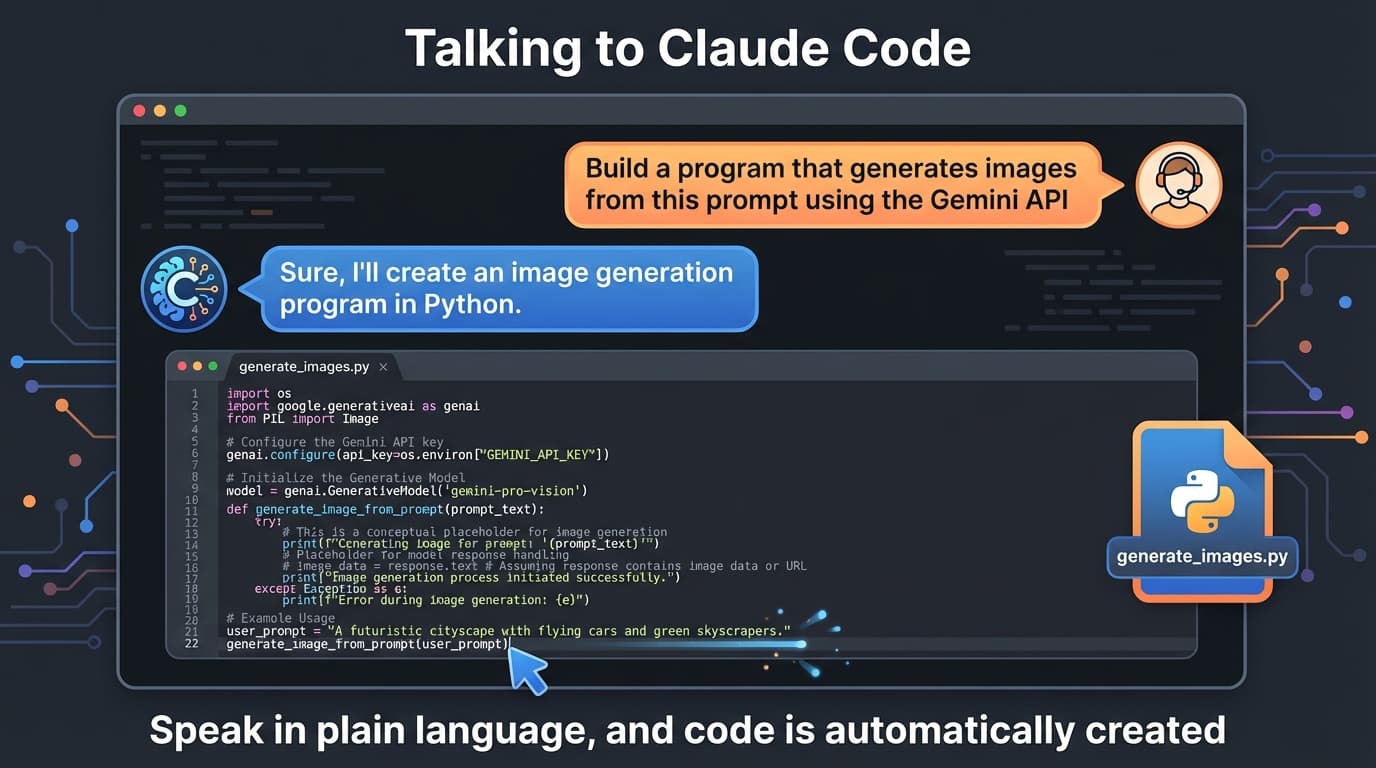
Here's what a real conversation looks like:
Designer:
"Build a Python program that generates images using the Gemini API. When I type in a prompt as text, it should save the image as a PNG. Have it read the API key from a .env file."
Claude Code:
"Sure, I'll build that." → Writes code to read the API key from
.env→ Writes code to send requests to the Gemini API → Writes code to save the resulting image as PNG → Program complete!
The designer doesn't need to write a single line of code. Just describe what you want to build and Claude handles the rest.
3.2 How the Program Works
Here's a simple breakdown of how the program Claude Code created works:
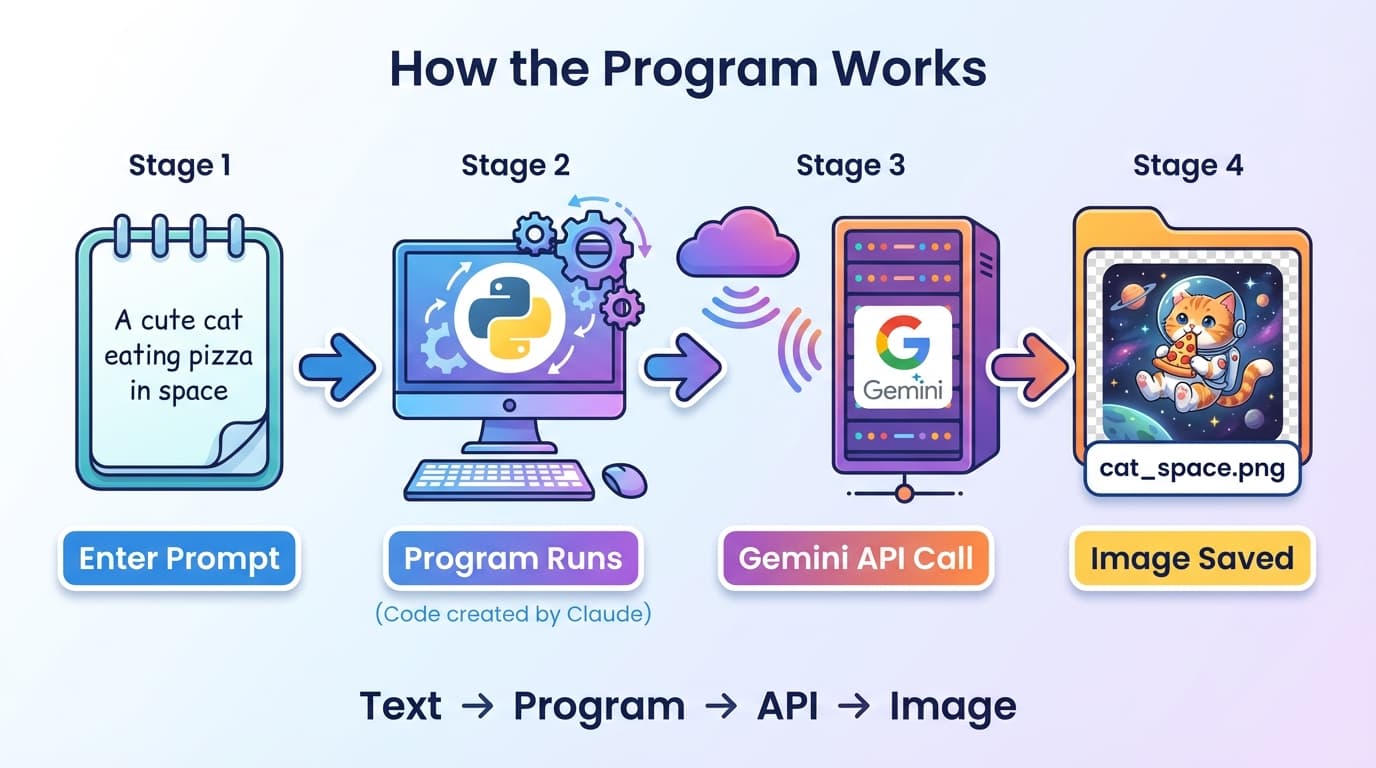
Prompt (text)
    ↓
Program on your computer (code created by Claude)
    ↓
Sent to Gemini API over the internet
    ↓
Image generated on Google's server
    ↓
Result image saved to your computer (PNG)
4. Creating Similar Images with Reference Images
4.1 What Are Reference Images?
This is the most useful feature for designers. The Gemini API can send images along with text, not just text alone. You can send a reference image and say "Make it feel like this."
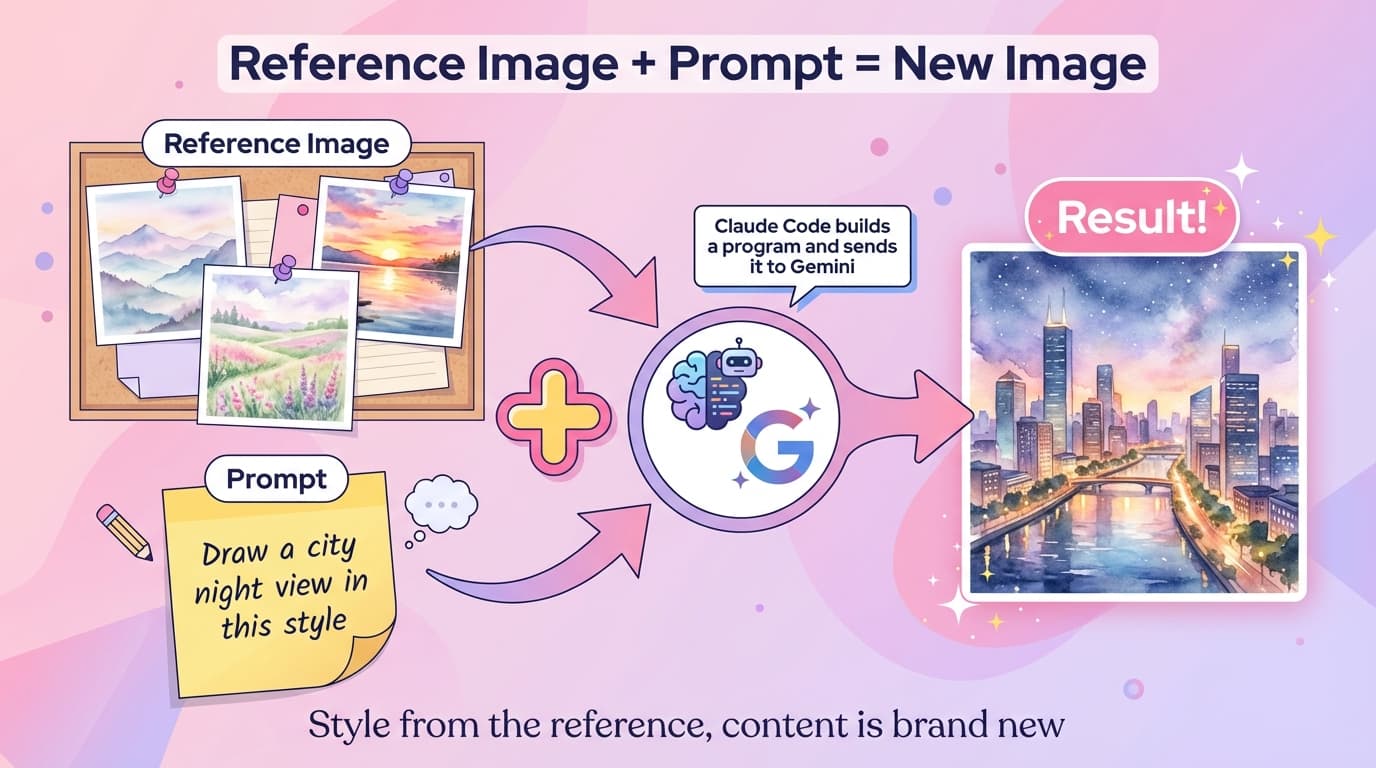
Tell Claude Code something like this:
"Write a program that sends this image (reference.png) to the Gemini API along with a prompt to create a city night view image in the same style"
Claude Code will:
- Write code to read the image file and attach it to the API call
- Write code to send it to Gemini along with the prompt
- Write code to save the result as well
4.2 Three Ways to Use References
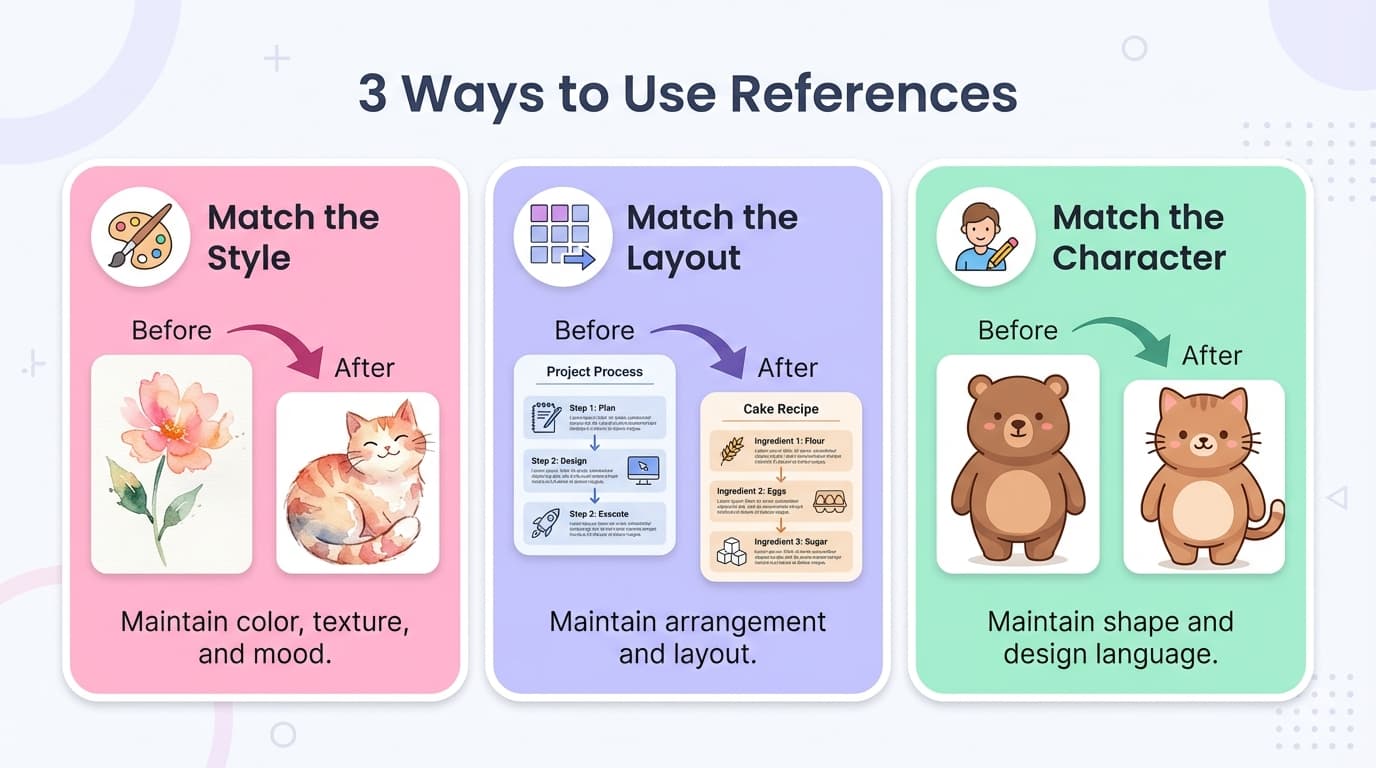
1. Match the Style
Tell Claude Code:
"Using the colors and textures of this image as reference, create a coffee shop illustration with the same feel"
2. Match the Layout/Composition
Tell Claude Code:
"Using the layout of this infographic (3-column structure, icons+text) as reference, create an infographic on the topic 'AI Image Generation Process'"
3. Match the Character Style
Tell Claude Code:
"Using the design style of this character (round shape, big eyes, minimal) as reference, create a cat character in the same style"
Key Point Instead of "Use this image as reference," saying "Use the color palette of this image as reference" — being specific about what to reference — yields much better results.
5. How to Write Great Prompts
5.1 Write It Like a Design Brief
A prompt is a work order you send to AI.
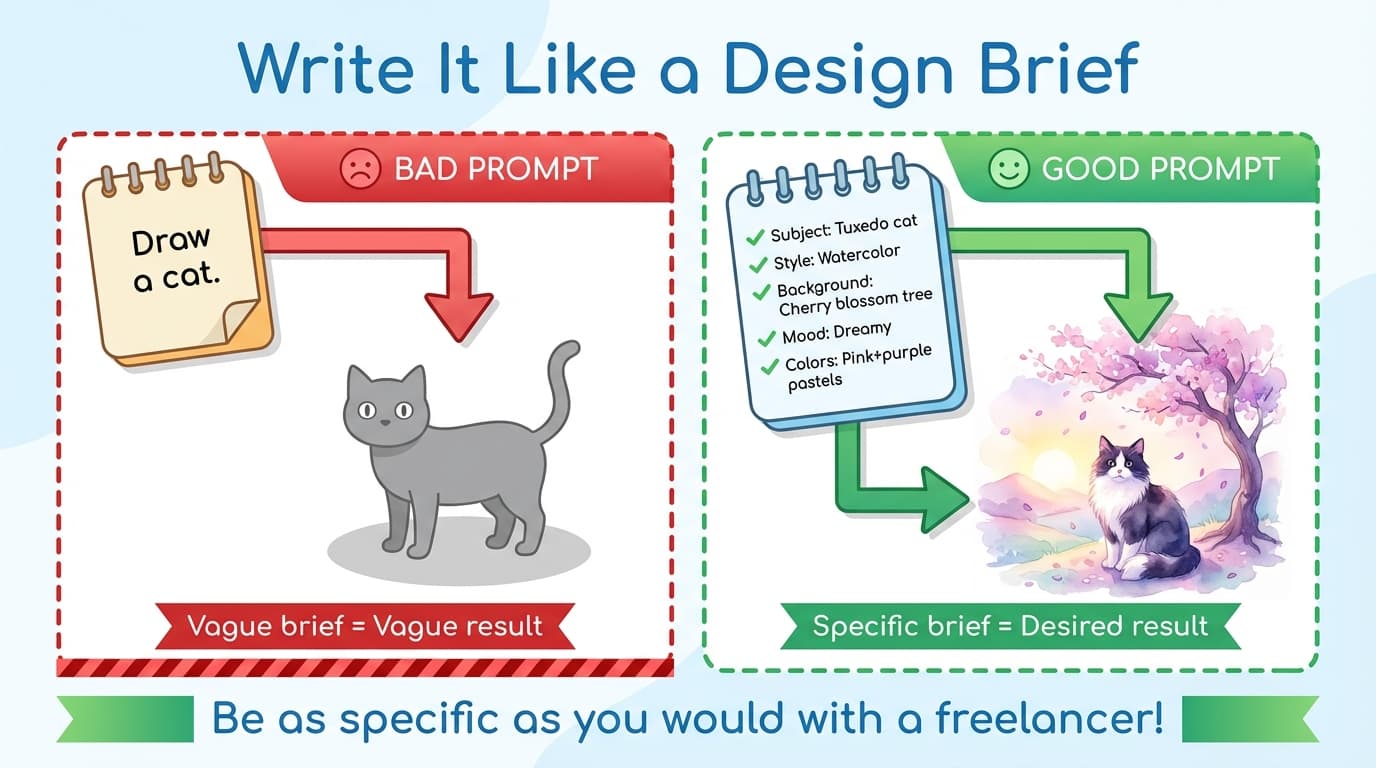
A design brief is a document you write when commissioning design work. It's a request that outlines "what style, what colors, what purpose." If you just tell a freelance designer "make me a banner," it's hard to get what you want. But if you provide a brief with the subject, style, colors, and mood, you'll get much more accurate results.
AI prompts work exactly the same way. The more specific the brief, the closer the result will be to what you want.
5.2 The 5 Elements of a Prompt
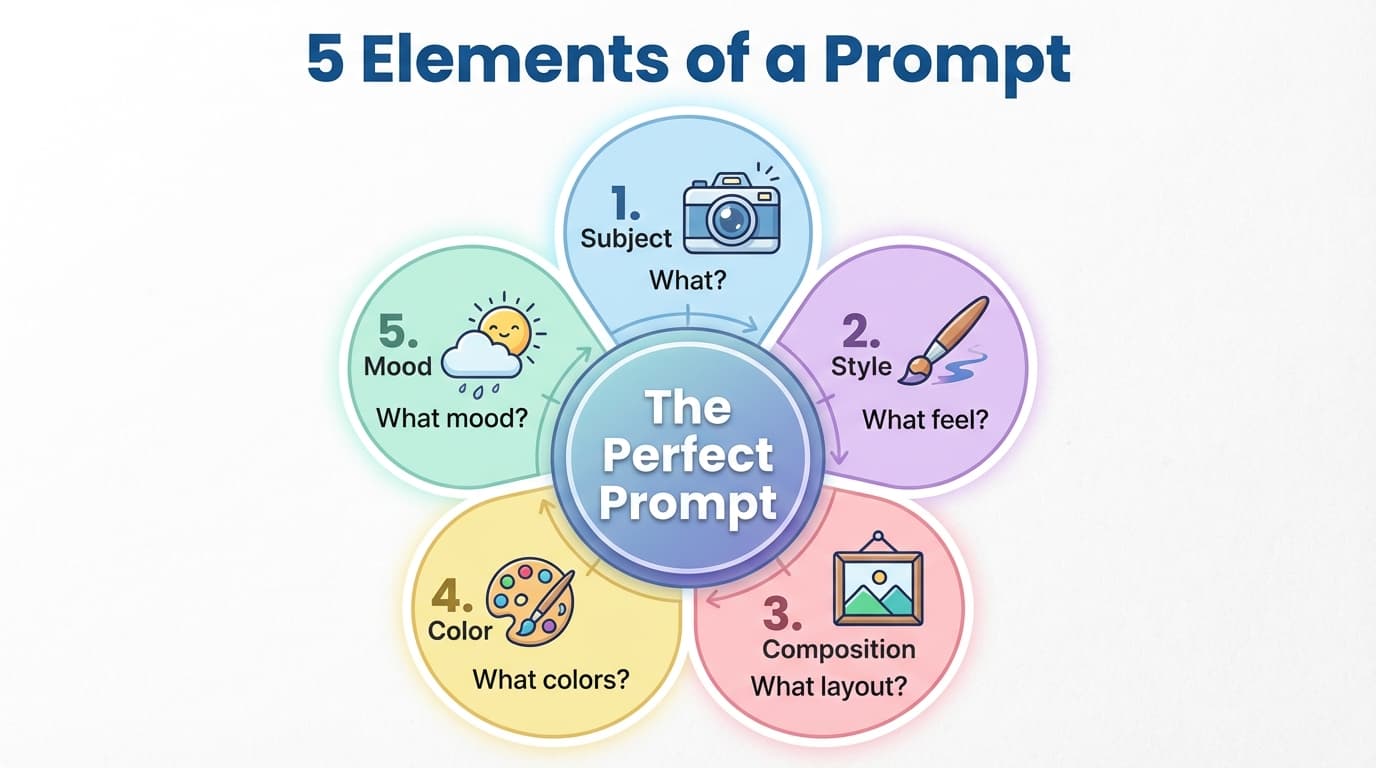
| Element | Description | Example |
|---|---|---|
| Subject | What to depict | "City night view", "Cat character" |
| Style | What feel to go for | "Watercolor", "Flat design", "3D rendering" |
| Composition | How to arrange it | "Front view", "3-column layout", "Close-up" |
| Color | What colors to use | "Pastel tones", "Monotone", "Neon colors" |
| Mood | What vibe to convey | "Warm", "Futuristic", "Cute" |
5.3 Practical Example
Bad prompt:
Make me a banner image
Good prompt:
Social media banner image.
Subject: AI technology introduction
Composition: 16:9 landscape, text on the left, illustration on the right
Left: "The Future with AI" large title
Right: Illustration of a robot and a human shaking hands
Colors: Deep blue + white, cyan accent
Style: Modern and clean tech style, gradient background
Mood: Trustworthy, forward-looking
5.4 Style Keywords Designers Can Use
Designers already have a rich visual vocabulary. Just use that knowledge directly in your prompts.
"Flat design, rounded corners, bright pastel colors"
→ Friendly and modern feel

"Minimal, lots of whitespace, serif font feel"
→ Luxurious and sophisticated feel

"Neon colors, dark background, glitch effect"
→ Cyberpunk / tech feel

"Watercolor texture, soft blending, natural colors"
→ Emotional and analog feel
5.5 Text Rendering Tips
AI image text rendering has improved a lot. Nano Banana Pro can accurately render Korean text and handle long paragraphs. However, it's not perfect, so text post-processing may sometimes be needed.
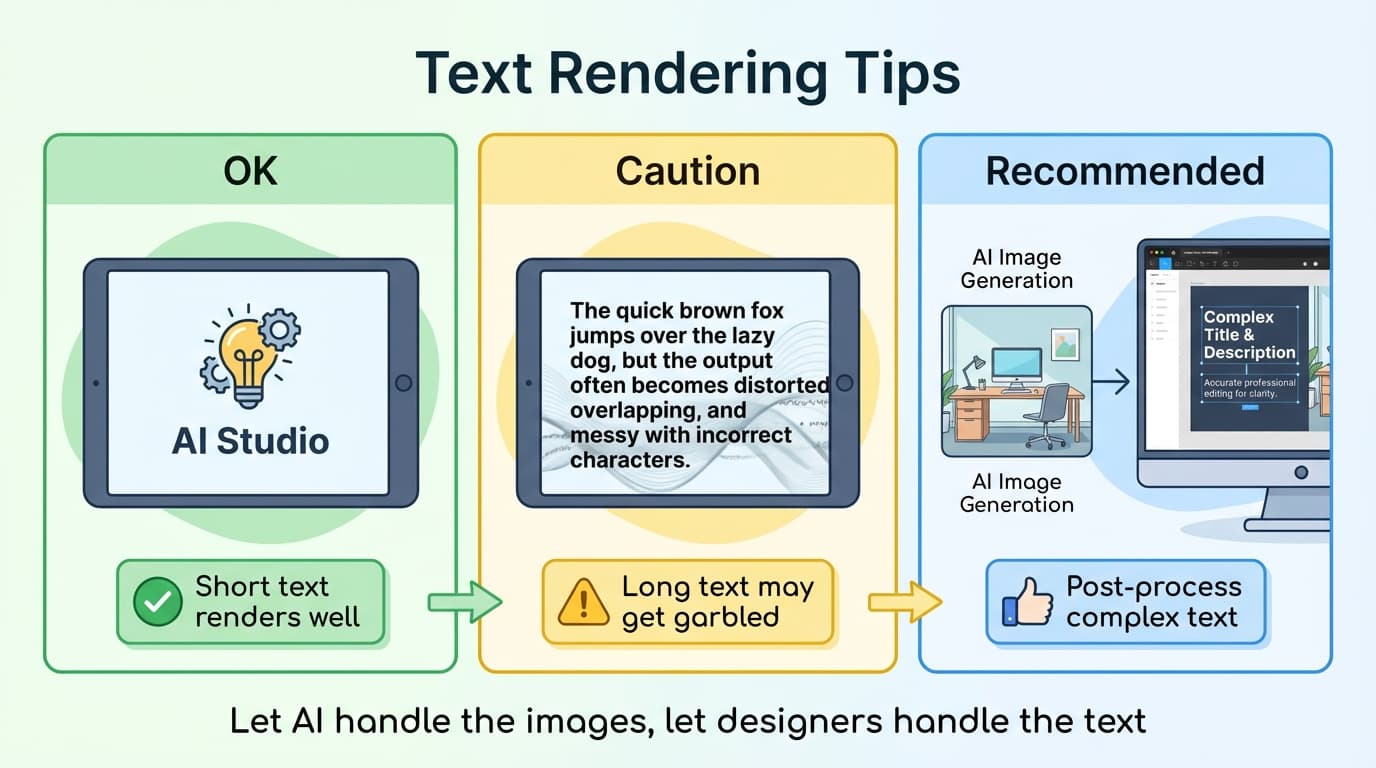
Recommended approach:
- AI handles most text rendering well, but check the results and post-process in Figma/Photoshop if needed
- Let AI handle the visuals, let designers handle fine text adjustments — this is the most practical workflow
6. Putting It Into Practice
6.1 The Complete Workflow
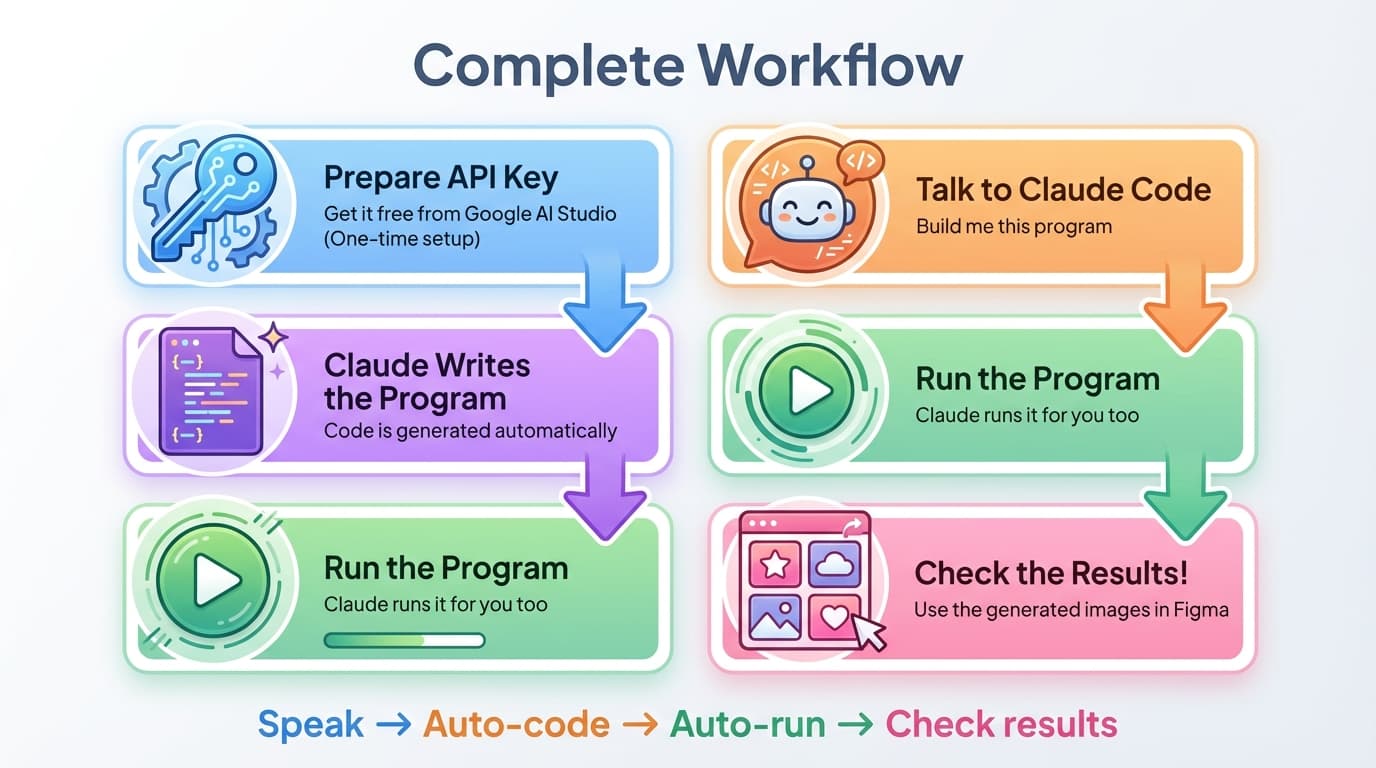
Step 1: Prepare API Key (one-time setup)
   ↓
Step 2: Describe the program you want to Claude Code
   ↓
Step 3: Claude writes the code
   ↓
Step 4: Claude runs the program
   ↓
Step 5: Check the results → Use in Figma
6.2 Real Conversation Examples
Example 1 — Creating a Character Series:
"I want to create character images using the Gemini API. Make 10 animal characters in the same style (cat, dog, rabbit, bear, fox, deer, penguin, owl, squirrel, panda). Round shapes with big eyes, pastel backgrounds. Save each as a PNG."
What Claude Code does:
- Generates 10 prompts
- Writes a program that calls the Gemini API
- Automatically generates and saves 10 images
Example 2 — Reference-Based Variations:
"Using this image (banner_ref.png) as reference, make 5 banners in a similar style. The themes should be 'Spring Sale', 'Summer Collection', 'Fall Event', 'Winter Discount', and 'New Year Special'."
What Claude Code does:
- Writes code to read the reference image
- Writes a program that sends 5 topic-specific prompts + the reference to the Gemini API
- Automatically generates 5 banners
Example 3 — Auto-Inserting Images into a Document:
"Read this markdown document (README.md), create infographic images matching each section's content, and insert them into the document."
What Claude Code does:
- Analyzes the document and generates image prompts for each section
- Generates images from each prompt
- Automatically inserts image paths into the document
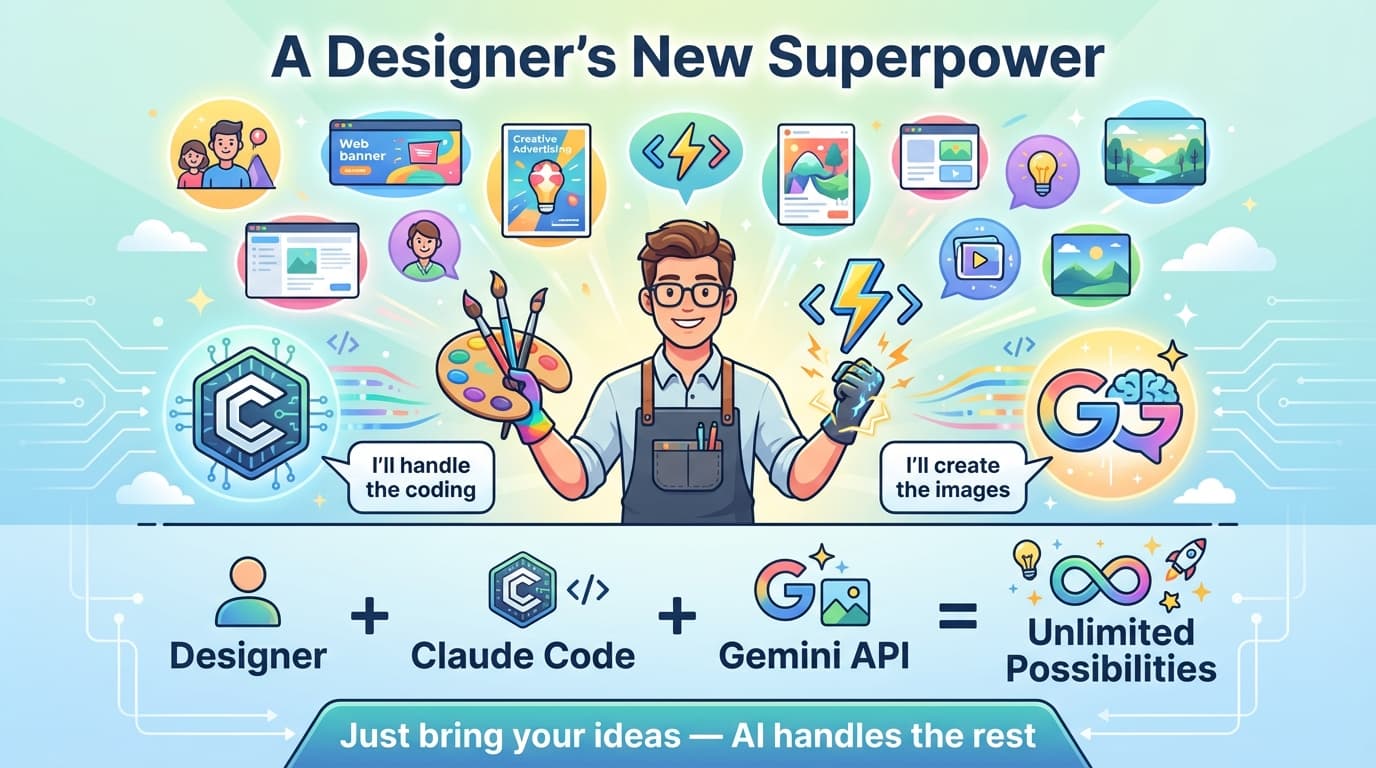
6.3 Summary — A Designer's New Superpower
7. Veo 3.1 — From Images to Videos
7.1 What Is Veo 3.1?
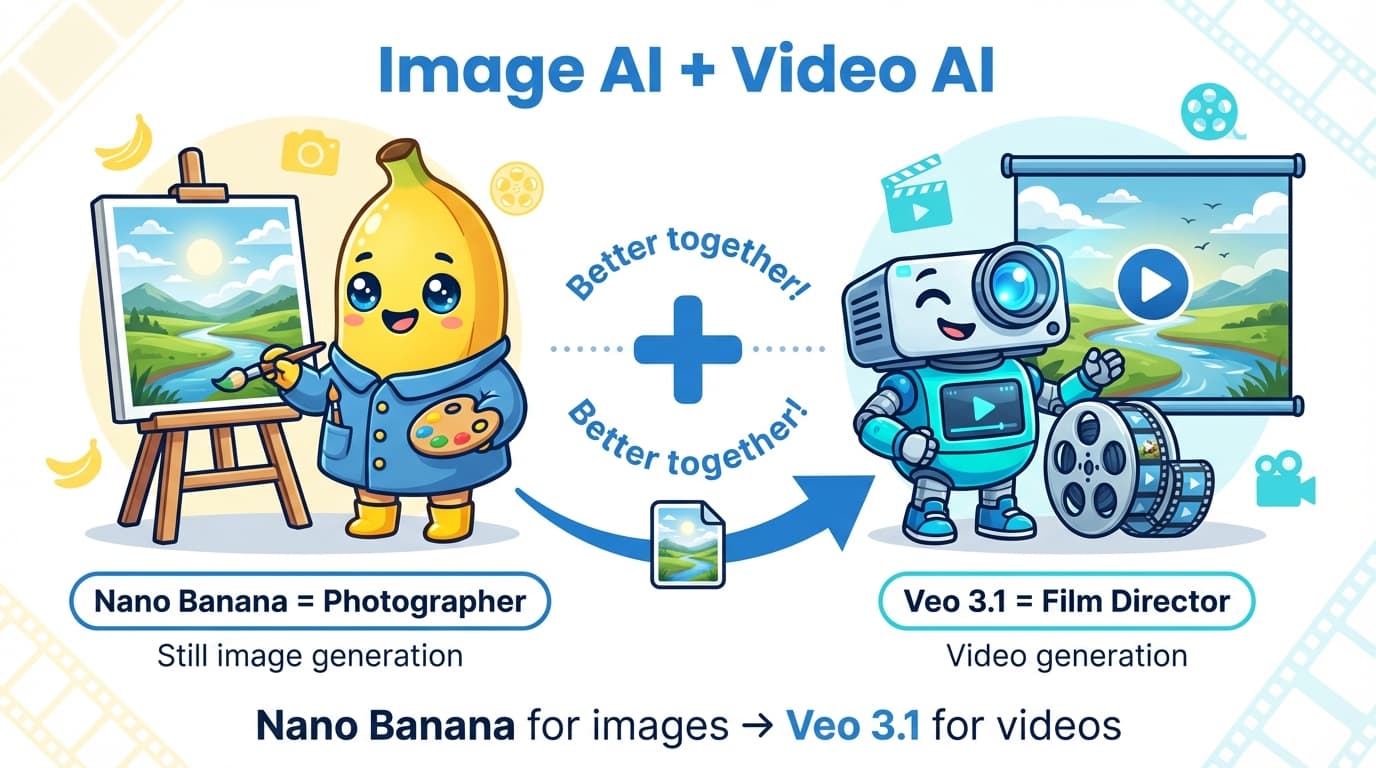
If Nano Banana is an AI that creates images, Veo 3.1 is an AI that creates videos. Made by Google DeepMind, this video generation model takes text or images and creates high-quality videos up to 8 seconds long.
| Nano Banana 2 | Veo 3.1 | |
|---|---|---|
| Creates | Still images (PNG) | Videos (MP4) |
| API Model ID | gemini-3.1-flash-image-preview | veo-3.1-generate-preview |
| Output | 1 image | Up to 8-second video |
| Resolution | Up to 4K | 720p / 1080p / 4K |
| Audio | - | Native audio auto-generated |
| Analogy | Photographer | Film director |
7.2 What Can Veo 3.1 Do?
Veo 3.1 can create videos in three ways.
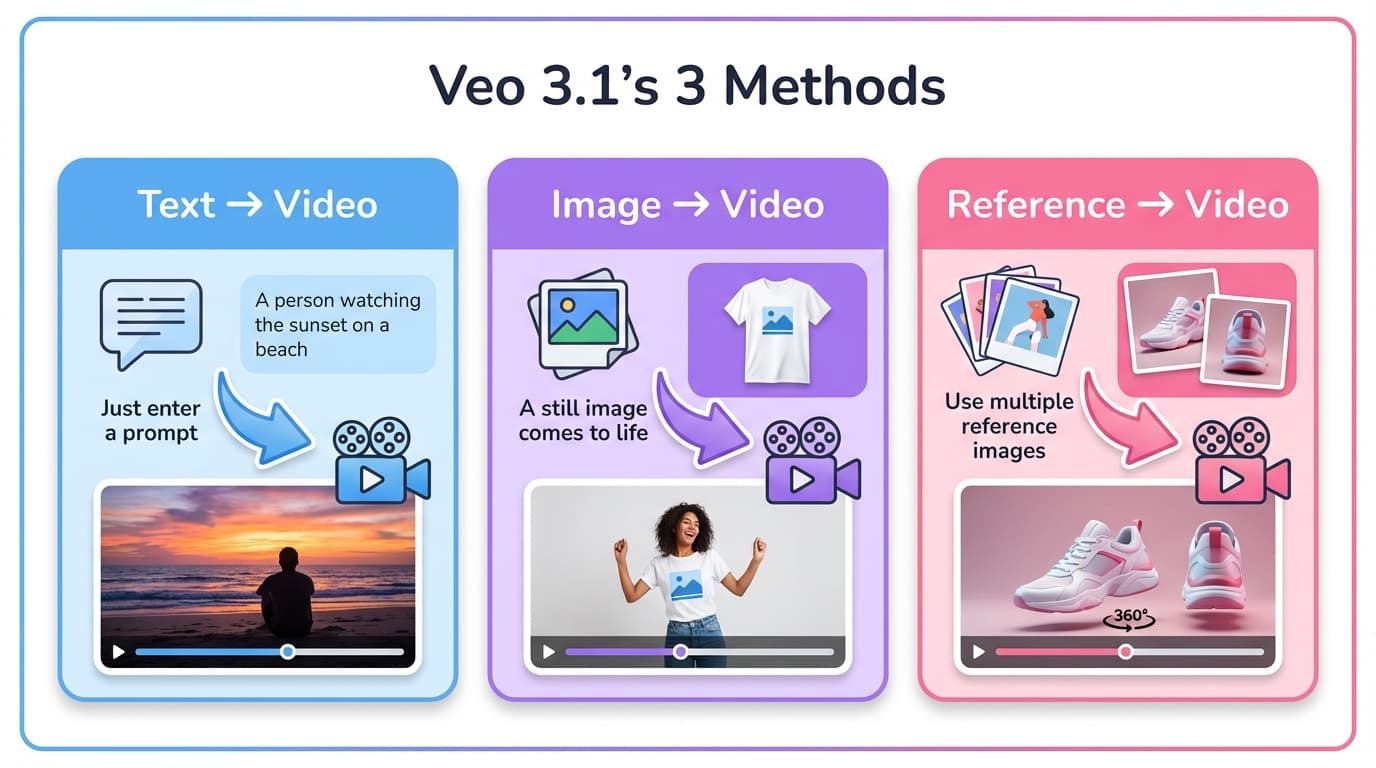
1. Text → Video
Generate a video from a text prompt alone.
"A person walking along a beach watching the sunset, cinematic tracking shot" → 8-second video generated
2. Image → Video ⭐ Most useful for designers
Feed in a still image, and it becomes a moving video.
T-shirt mockup image + "A model dances and shows off the t-shirt" → 8-second video of the model actually dancing
3. Reference Images → Video ⭐⭐ Most powerful feature
Register up to 3 reference images, and the AI maintains those image details (logos, text, designs) throughout the entire video.
Front photo (logo) + Back photo (text) + "A model spins and dances" → A video where both the front logo and back text are accurately shown
7.3 Image → Video vs Reference Images — What's the Difference?
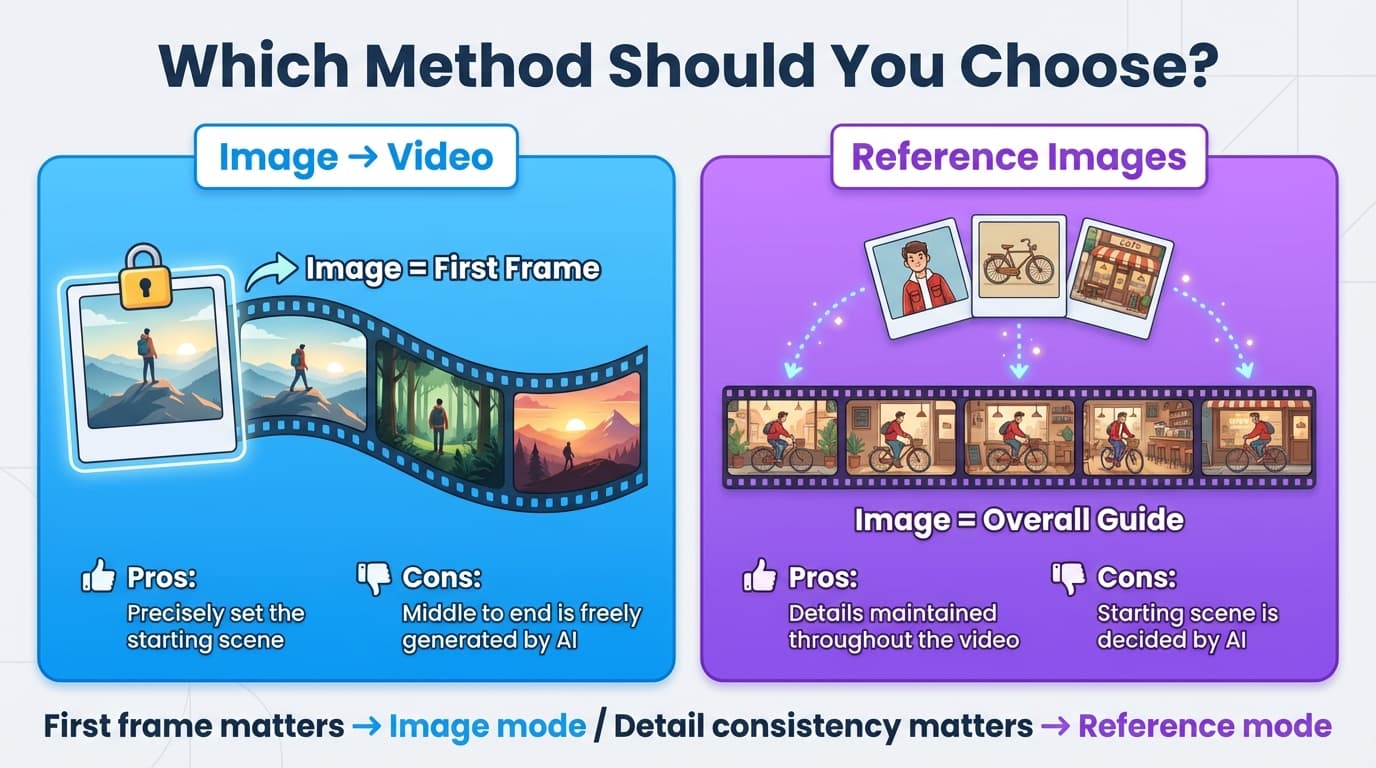
| Image → Video | Reference Images | |
|---|---|---|
| Role | Image = First frame | Image = Overall style guide |
| Number of Images | 1 | Up to 3 |
| Pros | Precisely set the starting scene | Logos, text, and details maintained throughout the video |
| Cons | Middle to end is freely generated by AI | Cannot specify the starting scene |
| Best For | "Start from this scene" | "Show this design throughout" |
Designer Tip For cases where the design needs to be shown accurately — such as t-shirts, packaging, logos — use the reference image method. Include front, back, and side photos together, and the AI will accurately reproduce the design from any angle.
7.4 Specifying First Frame + Last Frame
You can also specify both the "starting scene" and "ending scene" at the same time. The AI creates a video that smoothly transitions between the two scenes.
First frame: Front view photo + Last frame: Back view photo → A video that starts from the front and naturally turns around to the back
However, while this method nails the start and end, the AI freely fills in the middle, so details may disappear in between. If design details matter, the reference image method is the better choice.
7.5 How to Talk to Claude Code
Example 1 — Product Mockup Video:
"Use this t-shirt front photo (front.jpg) and back photo (back.jpg) as references, and create a video with Veo 3.1 showing a model dancing and showing the front and back."
Example 2 — Package Design Presentation:
"Using these 3 package design images (front, side, back) as references, create a video of the package slowly rotating 360 degrees. Use the Veo 3.1 API."
Example 3 — Social Media Reels Content:
"Using this product photo as the first frame, create a video of the product falling from the sky and landing on a table. 9:16 vertical aspect ratio."
7.6 How to Write Great Video Prompts
Similar to image prompts, but for video you need to additionally describe movement and camera work.
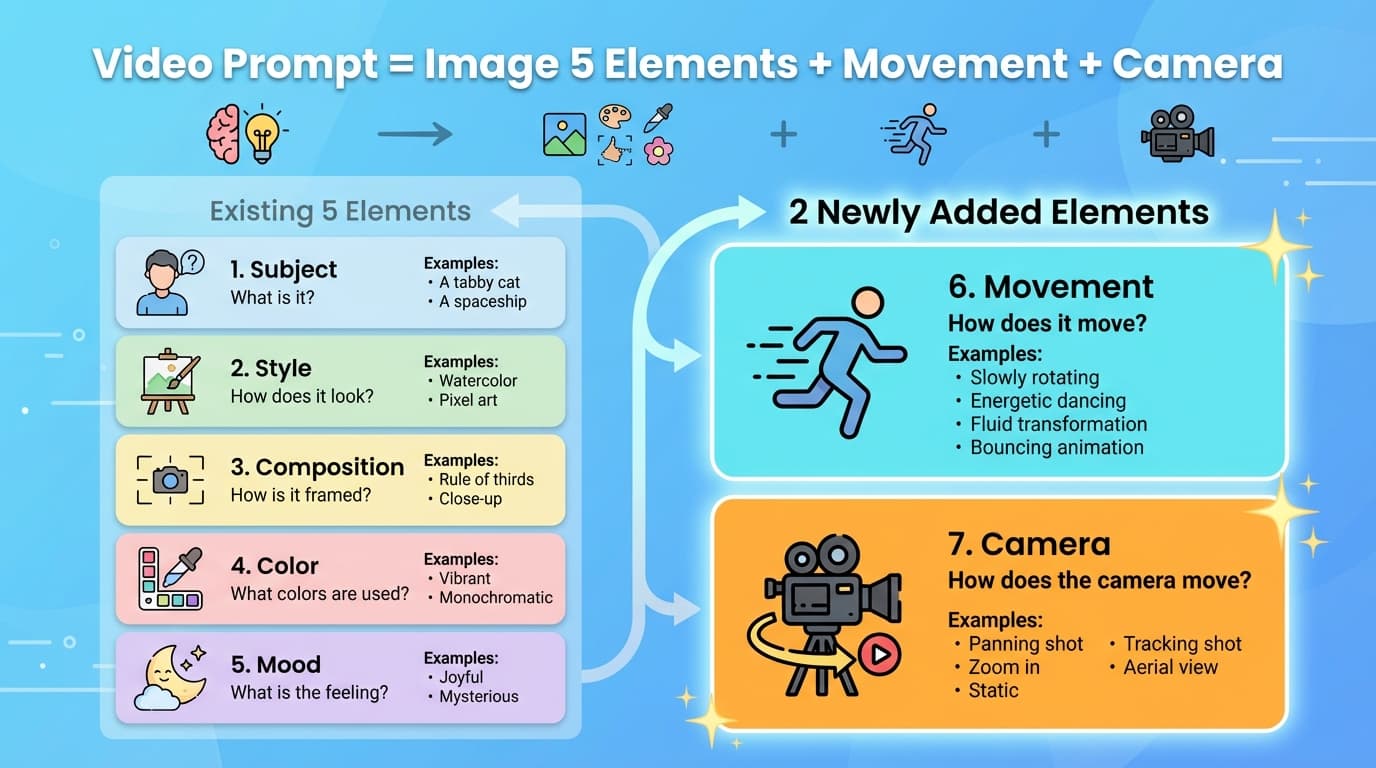
| Element | Description | Example |
|---|---|---|
| Subject | What appears | "A man wearing a black t-shirt" |
| Style | Video tone | "Cinematic", "Documentary", "Music video" |
| Composition | Aspect ratio and framing | "9:16 vertical", "Full shot", "Close-up" |
| Color | Color tone | "Natural light", "Neon", "Warm tones" |
| Mood | Vibe | "Energetic", "Calm", "Dramatic" |
| Movement ⭐ | How the subject moves | "Smooth rotation", "Hip-hop dance", "Slow walk" |
| Camera ⭐ | How the camera moves | "Panning wide shot", "Zoom in", "Static shot" |
Bad prompt:
Make me a t-shirt video
Good prompt:
A man wearing a black t-shirt with a white paper airplane logo
performs a smooth spinning dance, turning around to show the back
of the shirt with 'spacebar' text clearly visible.
Studio background, natural lighting, cinematic motion.
7.7 Veo 3.1 Limitations
| Item | Details |
|---|---|
| Max Length | 8 seconds (8s required for 1080p/4K or reference images), 4s/6s also available |
| Resolution | 720p, 1080p (8s only), 4K (8s only) |
| Aspect Ratio | 16:9 (landscape), 9:16 (portrait) |
| Reference Images | Up to 3 |
| Audio | Native audio auto-generated (background music, sound effects) |
| Video Extension | Supported (720p only for extensions) |