
- Authors

What Is Git?
"Saving" Isn't Enough
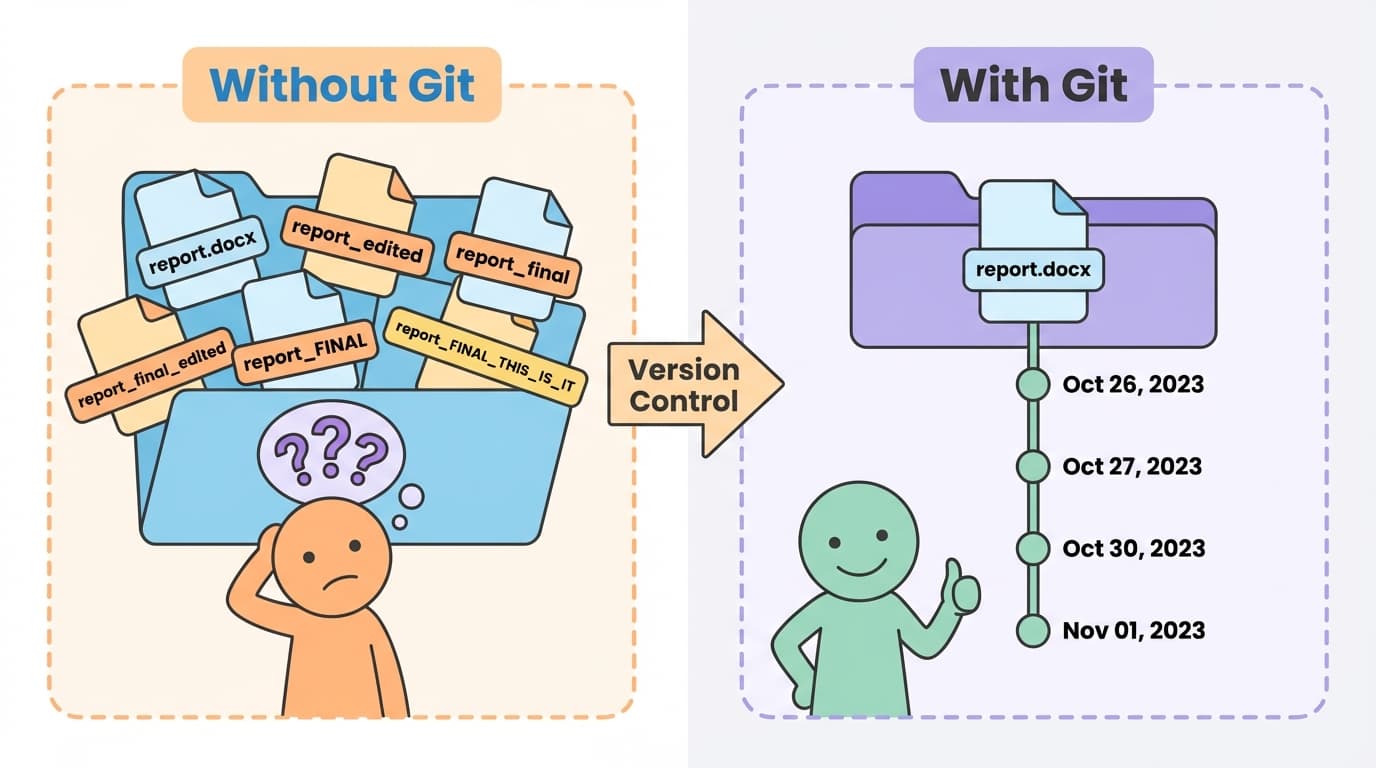
When you work on documents, you save them as files. But as you keep saving, this happens:
report.docx, report_edited.docx, report_final.docx, report_final_edited.docx, report_FINAL.docx, report_FINAL_THIS_IS_IT.docx...
Sound familiar? Every time you edit a file, you think "What if I need the old version?" and save it with a new name.
Before long, your folder is stuffed with files, and you have no idea which one is actually the final version.
Isn't Ctrl+Z Enough?
You might think, "I can just use Undo (Ctrl+Z)!"
But Ctrl+Z has its limits:
- Close the file and the undo history is gone
- Can't go back days to an earlier state
- No record of what you changed or why
- Can't undo across multiple files at once
Git = A Time Machine for Files
Git is a tool that systematically manages the history of changes in your files.
Think of it like a time machine:
- You can save (record) the current state
- You can go back to any point in the past
- It keeps a record of when, what, and why you made changes
- No need to rename files — just one
report.docxis enough
With Git, you only need one report.docx. Git internally stacks up changes like "First draft (1/10) → Added charts (1/12) → Revised conclusion (1/14) → Final review (1/15)".
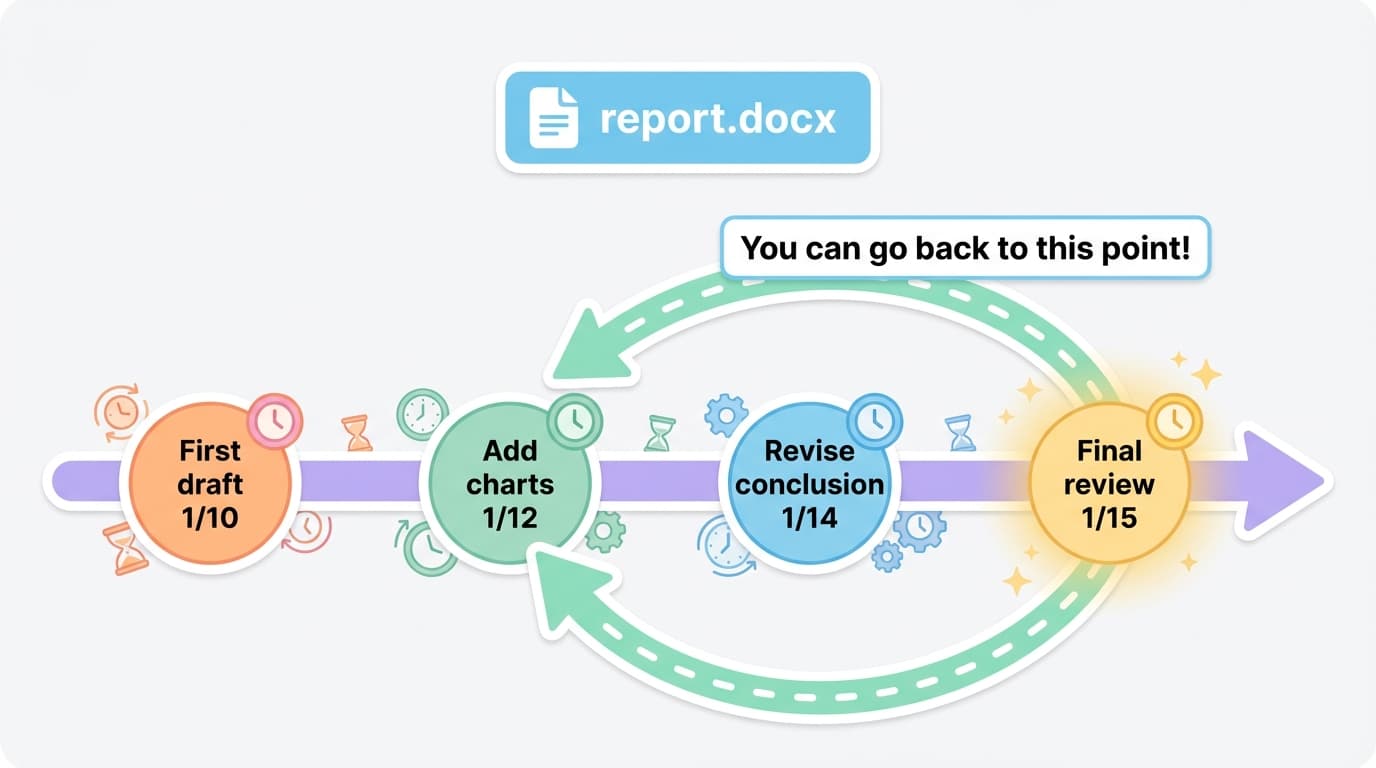
Git was originally created by programmers to manage code, but the principle is simple: "Record your changes, and revert when needed."
Why Should You Learn Git Now?
We're now in an era where AI directly edits your code.
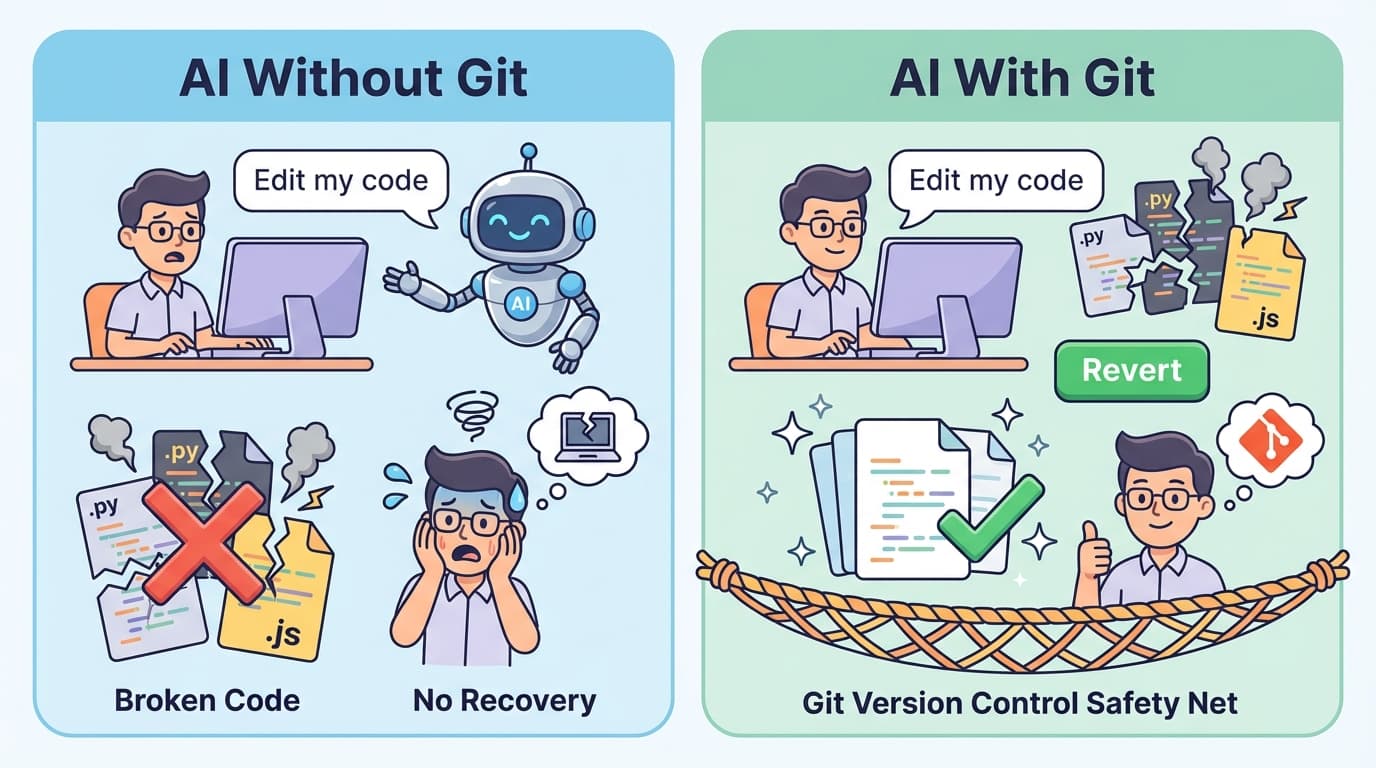
AI coding tools like Claude Code and Codex have conversations with you and directly modify files on your computer. Say "Build me a login feature," and the AI creates and edits multiple files on its own.
This is incredibly convenient, but there's one problem:
AI's edits aren't always what you wanted.
For example:
- You asked "Change the button color," but the AI also changed the layout
- You asked "Fix this bug," but something else broke
- The AI edited 10 files at once, and it's hard to tell what changed where
With Git, you can:
- Revert everything back to before the AI made changes
- See exactly which lines in which files the AI changed
- Keep only the changes you like
Using AI tools without Git is like playing a game without saving. If things go well, great — but if something breaks, you have to start over from scratch.
Key Takeaway
Git is a tool that manages the history of changes in your files. Instead of creating multiple versions with different file names, it tracks all changes within a single file. In an era where AI tools directly edit your files, Git serves as a safety net.
Repository
Repository = A Folder Managed by Git
To use Git, you first need to declare "I want Git to manage this folder."
A folder managed by Git is called a Repository, or Repo for short.
Typically, one project equals one repository:
- A website project → one repository
- An app project → one repository
- A report project → one repository
From Regular Folder to Git Repository
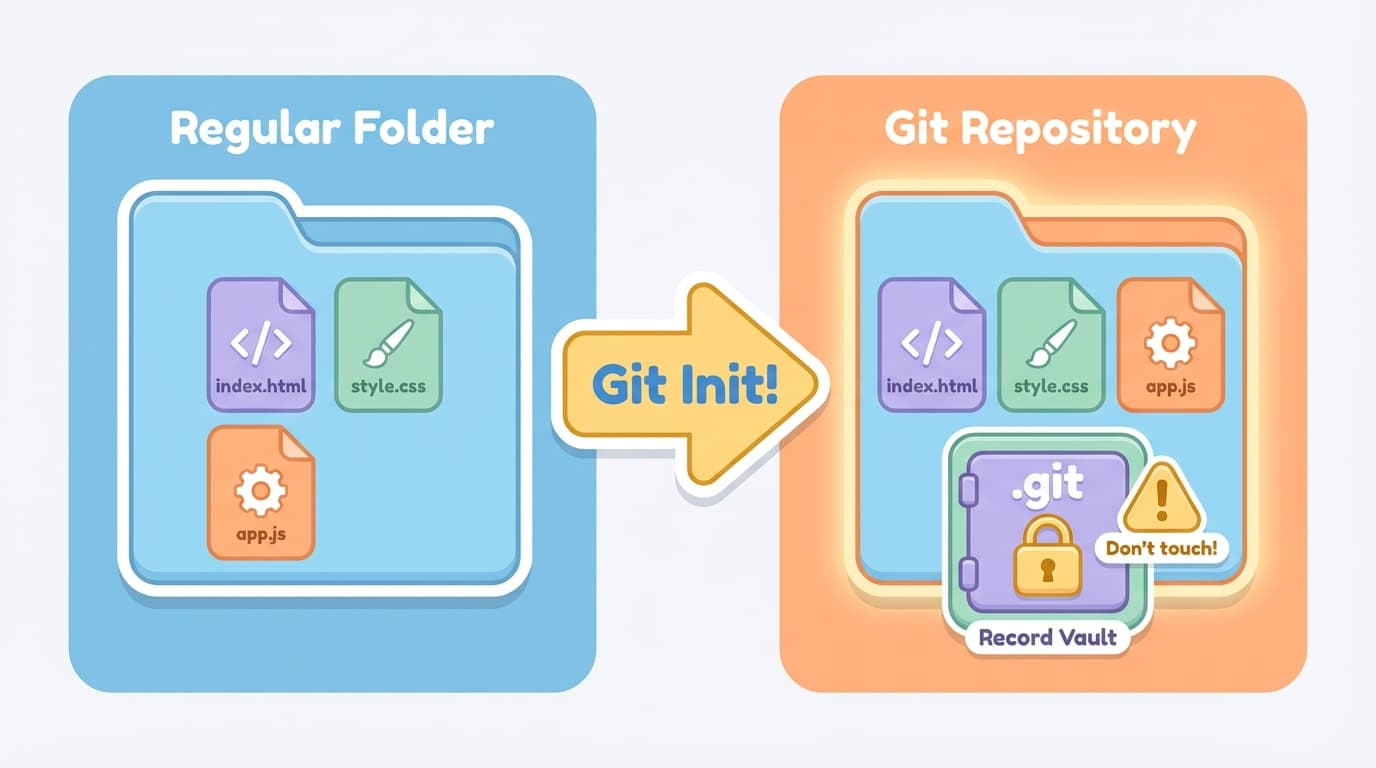
It starts as an ordinary folder. When you declare "Start managing with Git!", it becomes a Git repository from that moment on.
Nothing looks different on the surface. The original files stay the same, and a single hidden folder called .git appears in a place you can't normally see.
This .git folder is Git's record vault. Every time you make changes and save a record, Git neatly stores it in this vault. You never need to dig through or organize the vault yourself — Git handles it automatically.
One important thing: Never open or touch this vault directly. If you delete this folder, all your change history will be lost.
Key Takeaway
- Repository = A folder managed by Git
.gitfolder = The vault where all change history is stored. Don't touch it directly- One project = one repository
Commit
Commit = Save Point
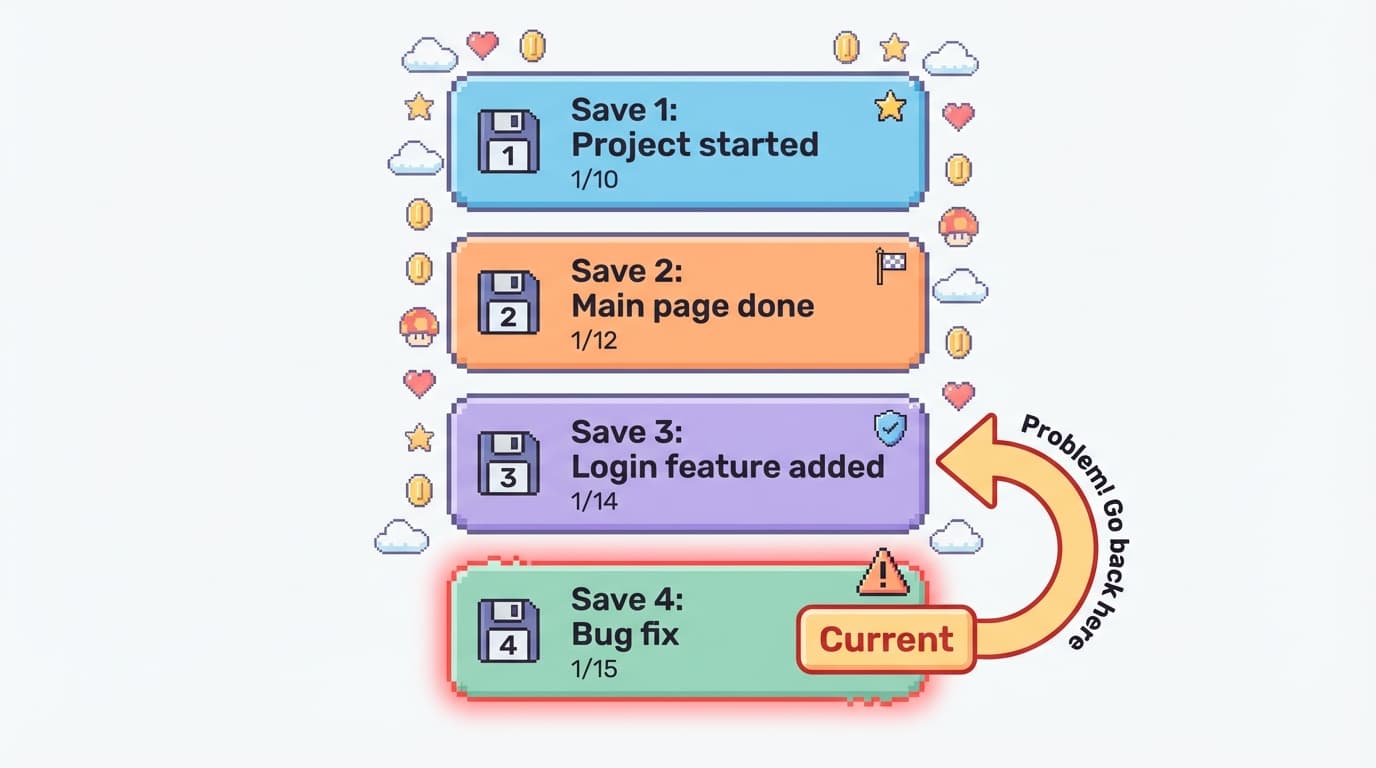
When playing a game, you save before a tough boss fight, right? If you lose, you can just go back to your save point.
In Git, a Commit is exactly this save point.
- Game save: "Save the game state at this moment"
- Git commit: "Save the file state at this moment"
When you commit, the state of all your files at that moment is recorded. You can return to this commit point anytime later.
If something goes wrong at the fourth save? Just go back to the third save.
Commit Messages — Notes on "What You Did"
Every commit requires a message.
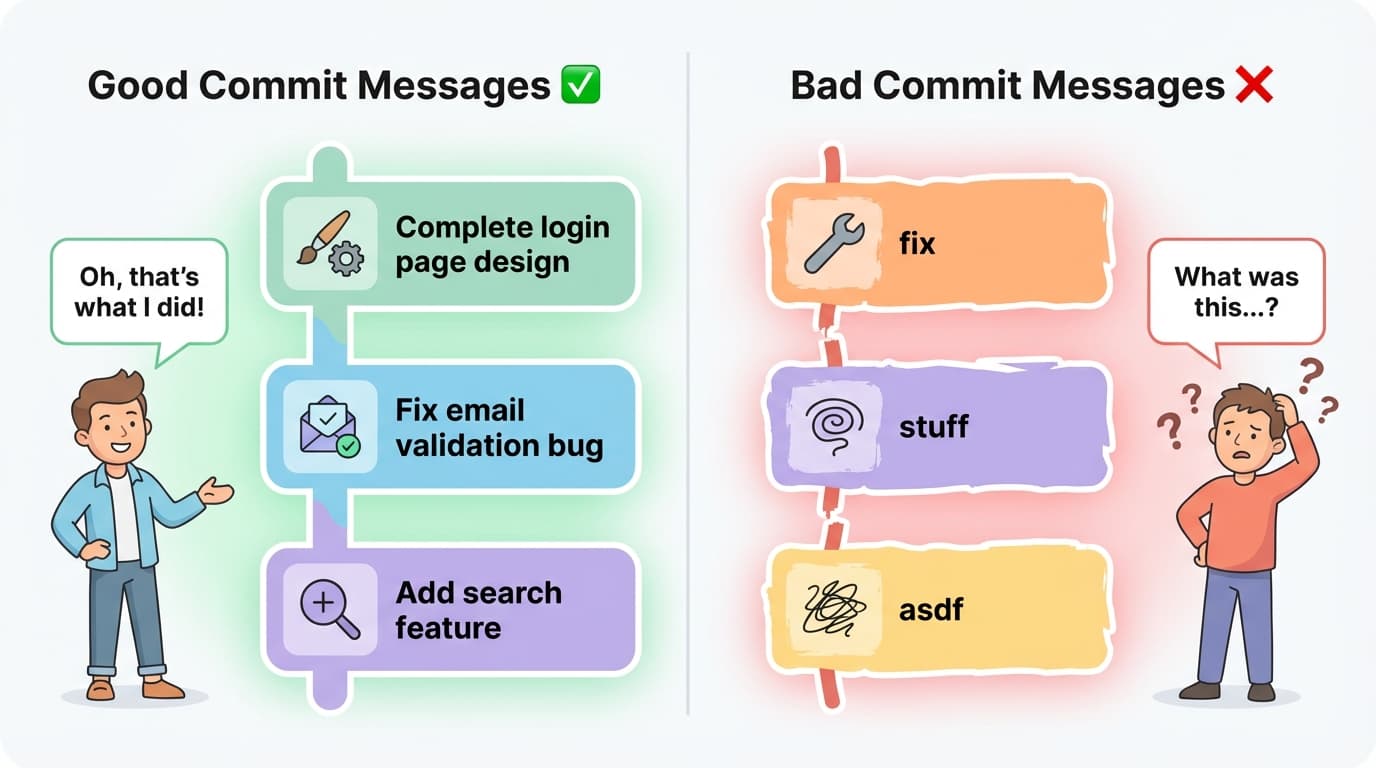
A commit message is a note explaining "what you did in this save". When you look back at the history, you read these messages to understand what happened at each point.
It's like leaving a memo on a game save. If you write "Before boss fight, full HP" you'll know exactly what's going on later. But if you write "stuff" or "asdf," you'll have no clue a week later.
Git commit messages work the same way. Write specific messages like "Complete login page design" or "Fix email validation bug". Messages like "fix" or "asdf" are useless later.
Write clearly — your future self will thank you.
Key Takeaway
- Commit = A save point that records the state of your files
- Commit message = A note explaining "what you did at this point." Write clearly
- Edit files → commit → save complete!
Browsing Change History
Commit History = Save List
After saving multiple times, you can see a list of all the saves you've made.
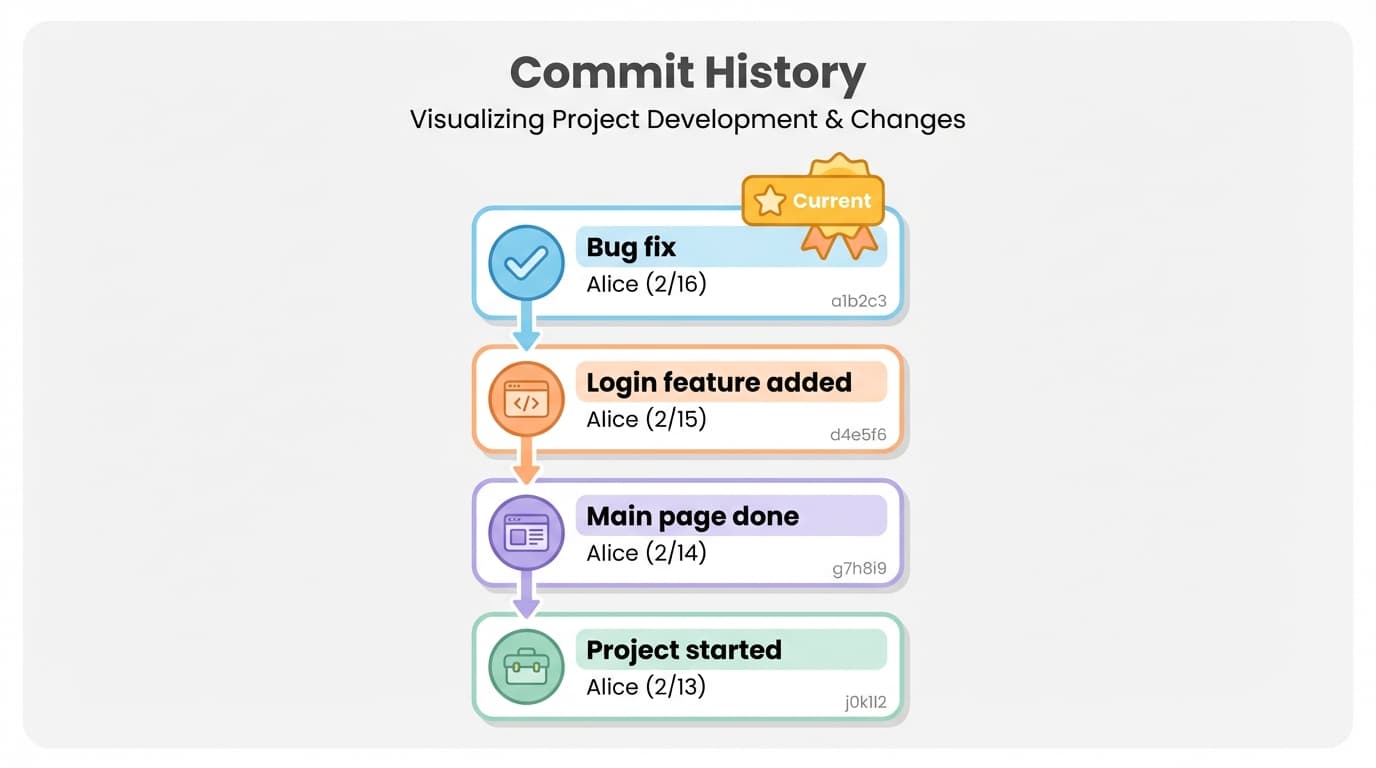
In Git, this is called the Commit History. It's like a list of game saves.
The commit history contains information about each save, stacked in chronological order. Each save (commit) includes:
- Unique ID: A label that identifies each commit (like a social security number — no two are alike)
- Author: Who made this save
- Date: When it was saved
- Message: What was done
Comparing Changes
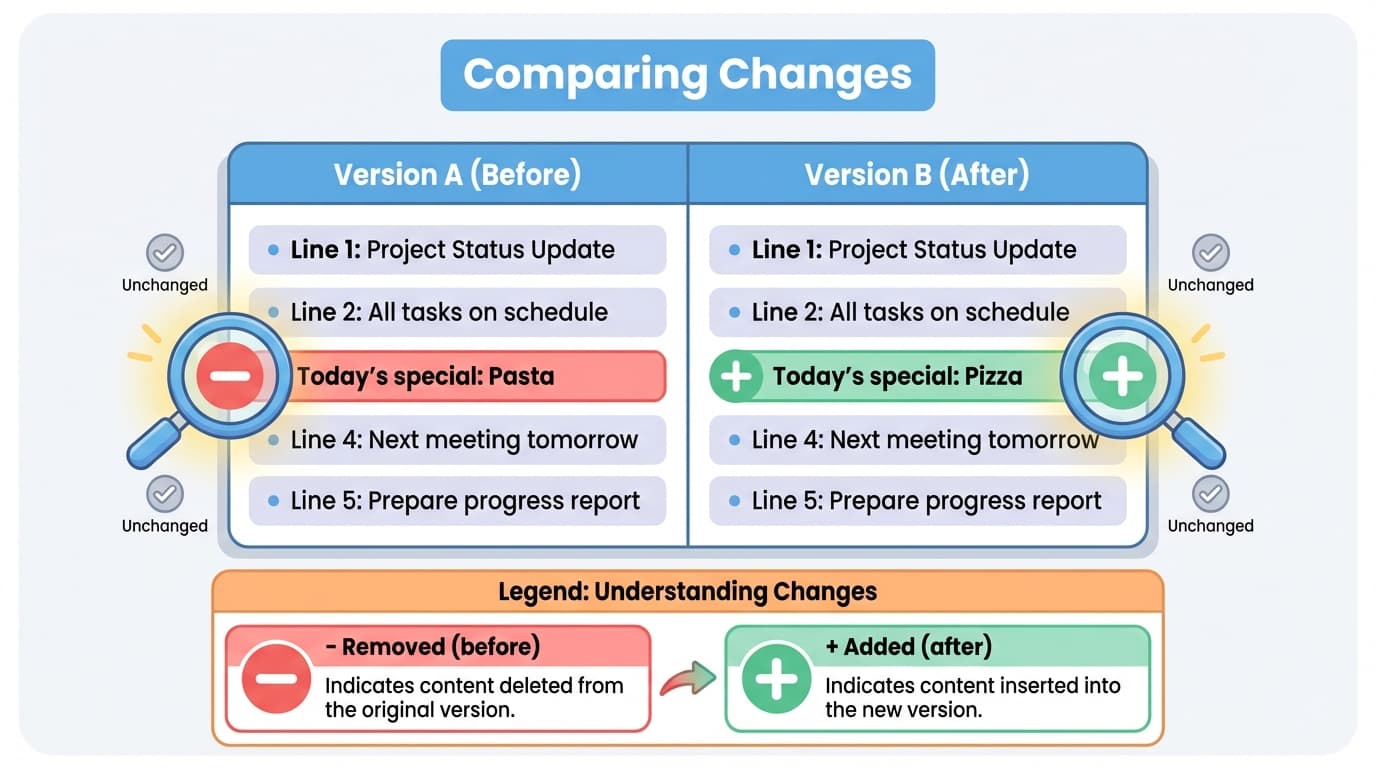
Git also shows you exactly "what changed compared to before" for each save.
For example, if you changed "Today's special: Pasta" to "Today's special: Pizza" in a file, the old content is shown in red (-) and the new content in green (+).
Even when AI edits 10 files at once, you can use this comparison feature to check exactly what changed where, line by line.
Going Back to a Previous State
This is where Git's real power lies. Once you've committed, you can go back to that point anytime.
"I added the login feature and everything broke" → Just go back to the previous save.
This is the time machine we talked about earlier. The more often you commit, the more granular your save points become, and the more precisely you can travel back in time.
Key Takeaway
- Commit history = A list of all saves you've made. Records who, when, and what
- Change comparison = Shows what's different from before in red (removed) / green (added)
- You can go back to any committed point anytime — this is Git's core value
Remotes and Push
So Far, Everything's on Your Computer
Let's recap what we've learned:
- Create a repository
- Edit files
- Make commits (save points)
But all these records exist only on your computer.
What if your computer breaks? All records are gone. Want to work with someone else? You'd have to send files one by one.
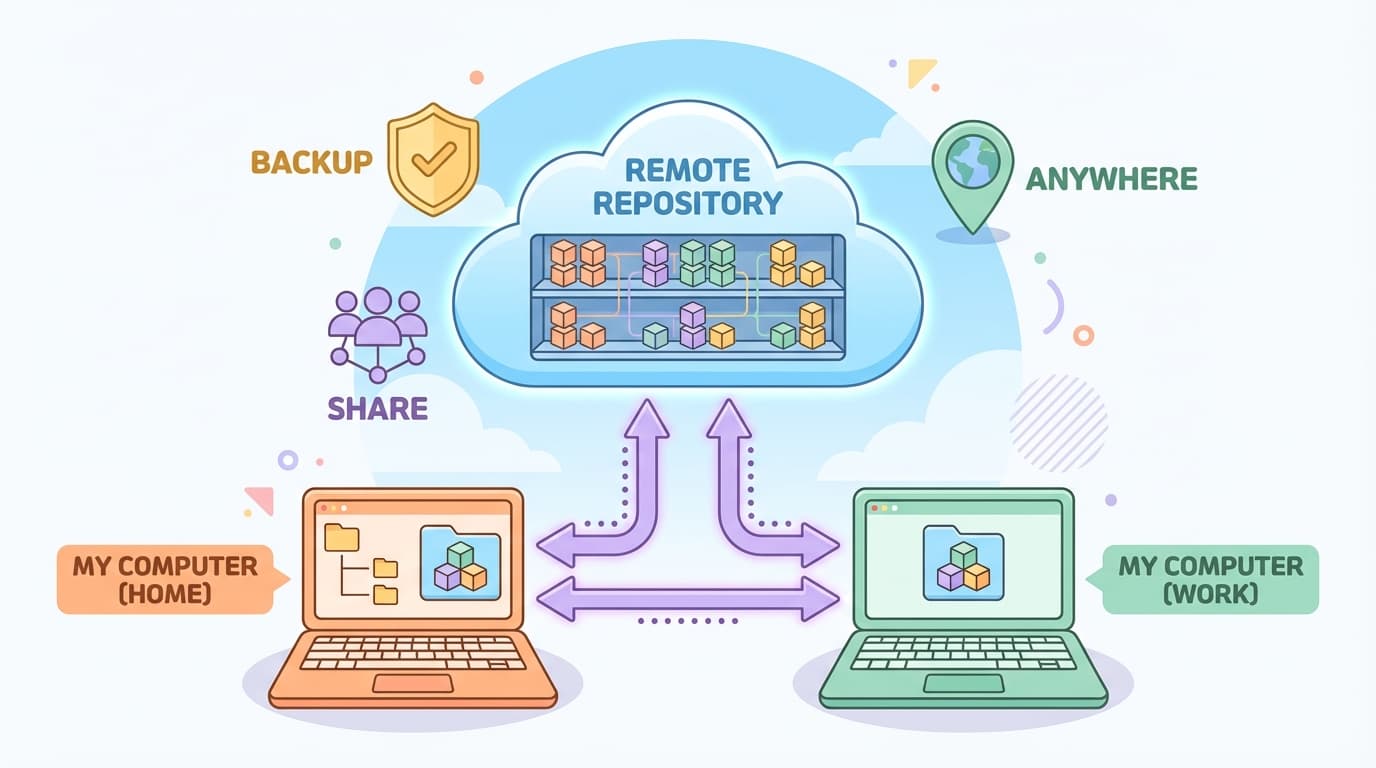
Remote = A Repository on Another Computer
A Remote is a repository that lives on a different computer — not yours.
Usually, it's set up on an internet server (cloud) and connected to the repository on your computer.
With a remote:
- Backup: Even if your computer breaks, the records remain on the remote
- Sharing: Others can access the remote and get the same code
- Work anywhere: Work on your home computer, push to the remote, then continue on your work computer
Think of it as similar to a cloud drive (Google Drive, iCloud). But instead of just uploading files, you upload and download the entire commit history.
Clone = Getting It for the First Time
If a repository already exists on a remote, you can copy the entire thing to your computer. This is called a Clone.
True to its meaning "to duplicate," cloning brings both the files and the entire commit history from the remote to your computer.
Many projects actually start this way:
- Joining a company and getting the existing project
- Getting someone else's project
- Continuing work on your office computer that you started at home
Once you clone, the remote is automatically linked, so from then on you just use Push and Pull to exchange records.
Push and Pull
After cloning a repository, there are two ways to exchange records between your computer and the remote.
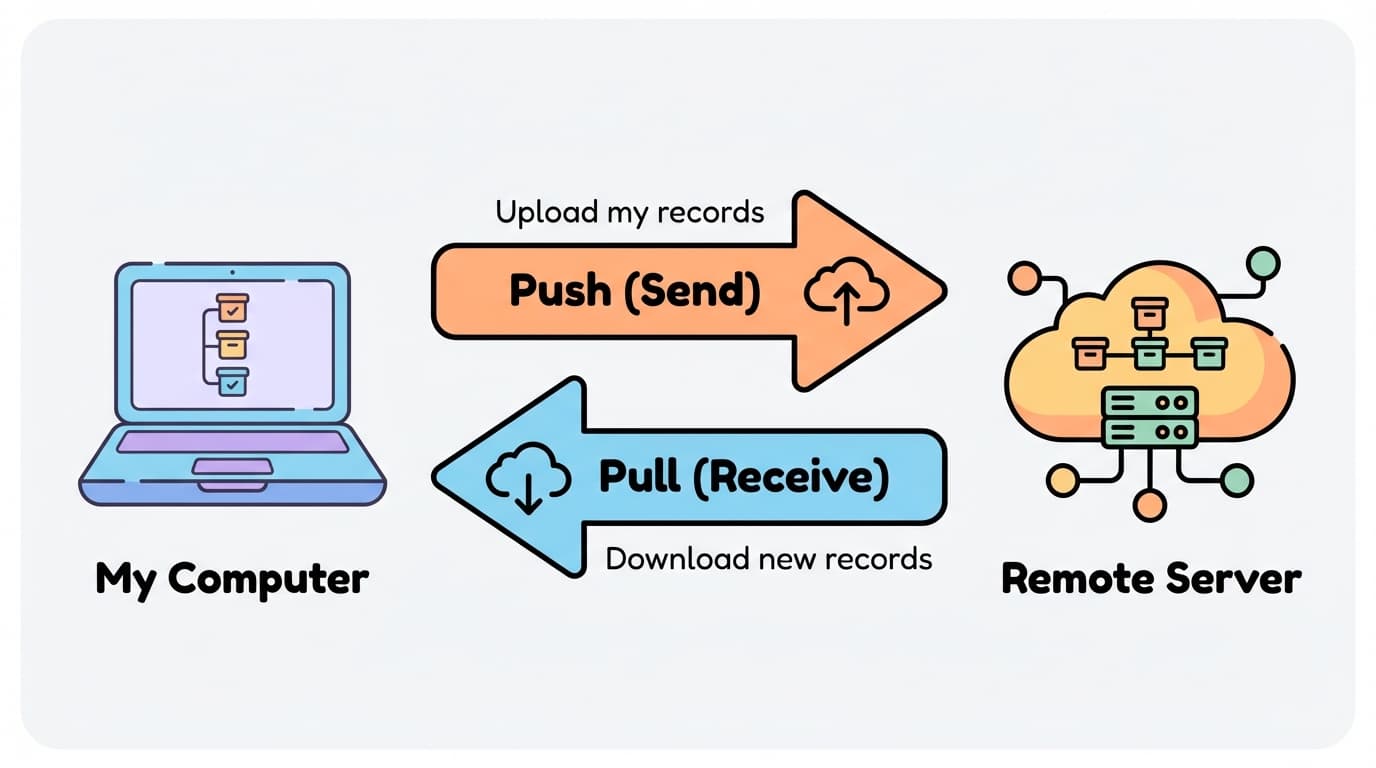
Push = Send
It means "push out." You upload the commit records from your computer to the remote. Your save history is copied to the remote as-is.
Pull = Receive
It means "pull in." You download new commit records from the remote to your computer. This brings other people's new records to your machine.
In summary:
| Action | Direction | Meaning | Analogy |
|---|---|---|---|
| Clone | Remote → My Computer | Get the repository for the first time | Copy the whole repo |
| Push | My Computer → Remote | Upload my records | Cloud upload |
| Pull | Remote → My Computer | Get new records | Cloud download |
Key Takeaway
- Remote = A repository on another computer (server). Used for backup and sharing
- Clone = Getting the remote repository for the first time
- Push = Uploading your commits to the remote
- Pull = Downloading commits from the remote
- With a remote, your work is safe even if your computer breaks, and you can collaborate with others
Branches and Merging
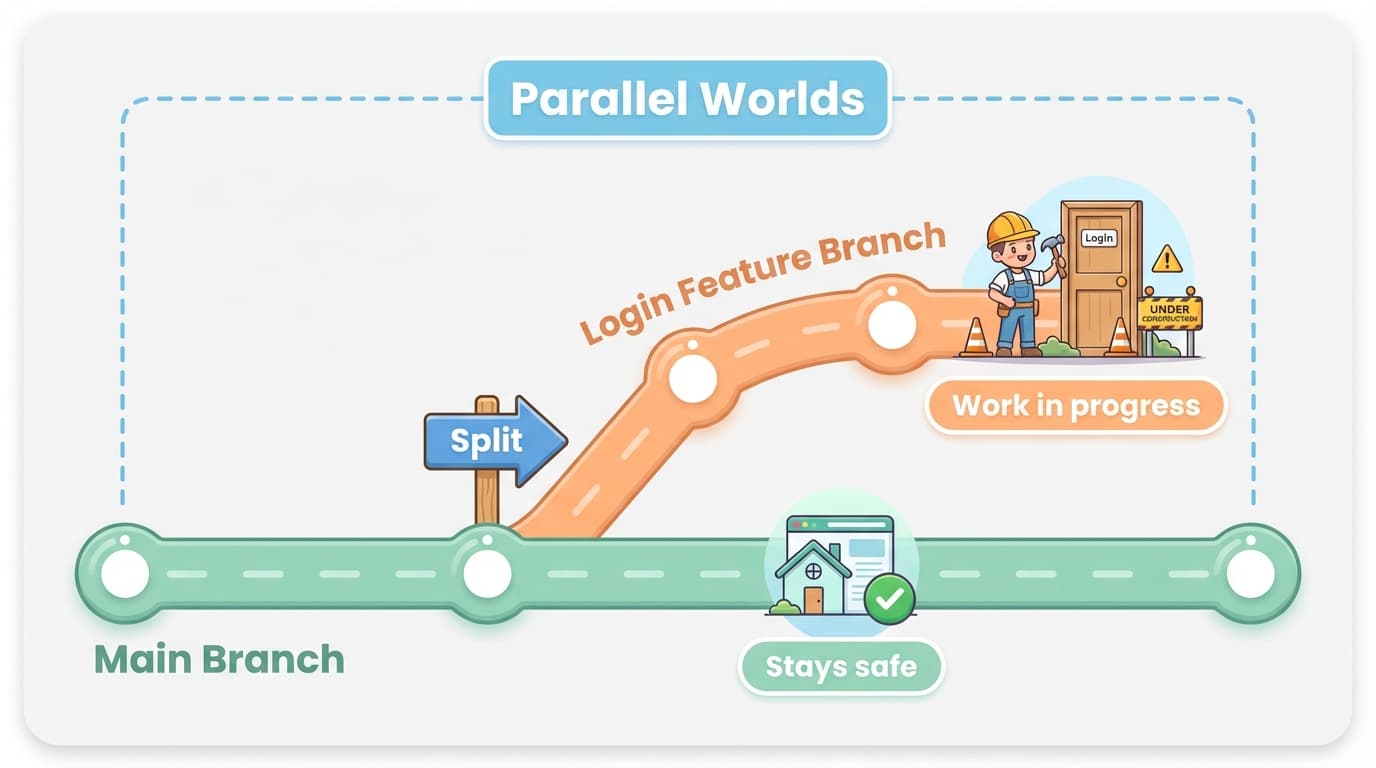
Branch = Parallel World
Everything we've learned so far was about stacking saves along a single path. But in real work, there are times when you want to work on multiple things at once.
For example:
- Your website's main page is working perfectly
- You want to build a login feature
- But you can't let the main page break while building login
This is where Branches come in.
A branch is a "fork in the road". You create a new path from the current state and work freely on that path. The original path (main) stays safe and untouched.
Think of parallel worlds:
- In one world, you're experimenting with the login feature
- In another world, the main page is running just fine as before
- The two worlds don't affect each other
Benefits of branches:
- Safe: Even if the new feature fails, the original state is safe
- Parallel work: Multiple people can build different features on their own branches
- Free experimentation: You can try "What if I do this?" without any worry
Merge = Combining
When you're done working on a branch, what do you do?
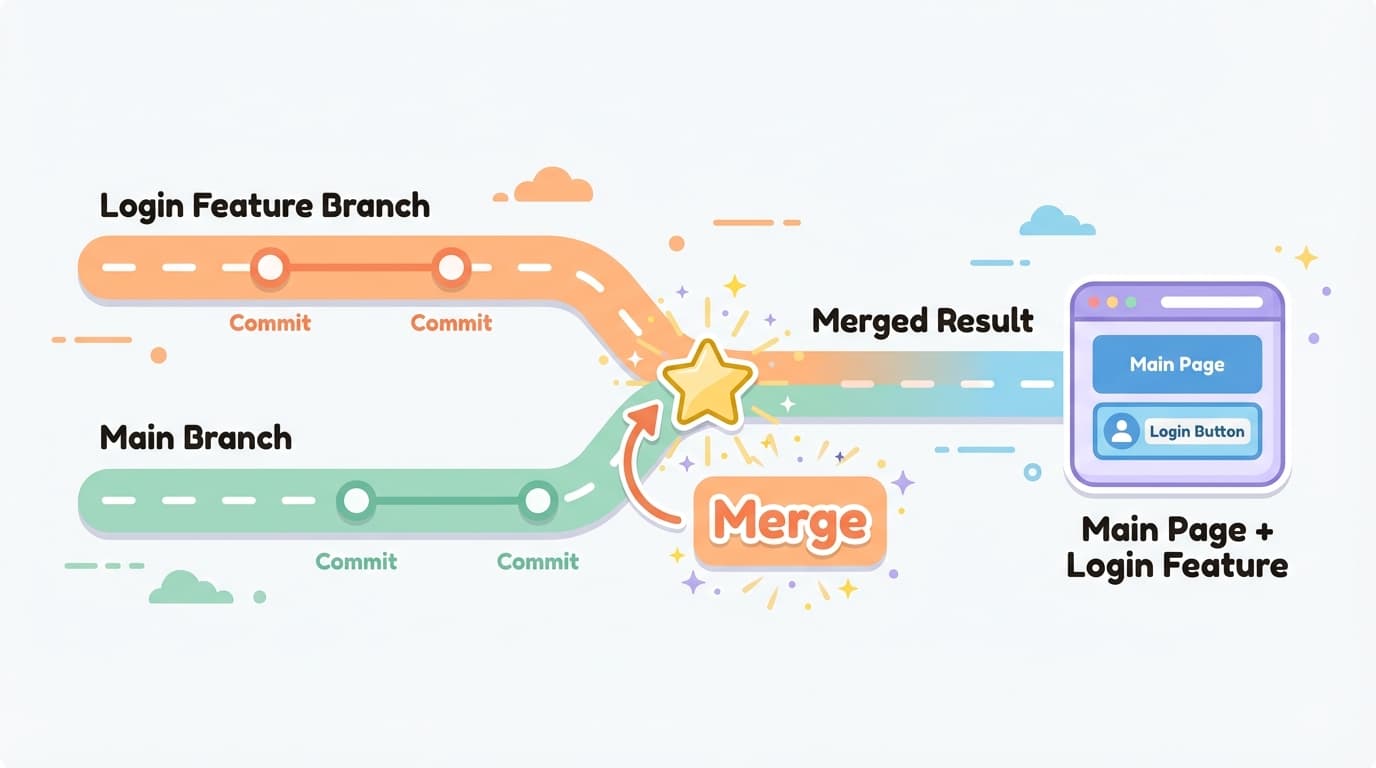
You combine it back into the original path (main). This is called a Merge.
If the login feature is complete, you merge it into main to create "a complete website with login included". The merged result contains everything from main + everything from the login feature.
It's like two streams joining to form a larger river.
Key Takeaway
- Branch = A fork in the road. Keep main safe while working on a new path
- Merge = Combining work from a branch back into main
- Split apart → come back together. That's branches and merging
Summary
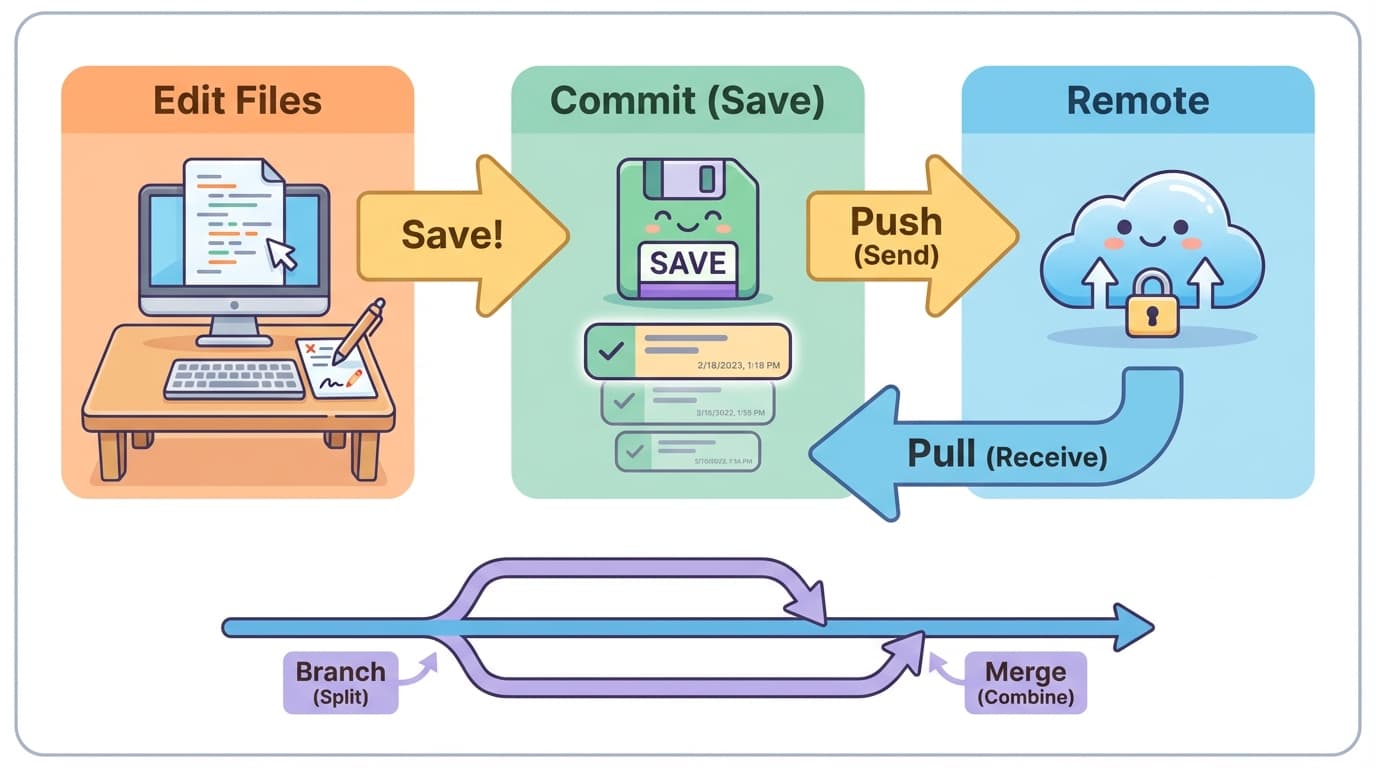
The Overall Git Flow
Edit files → Save (Commit) → Send (Push)
You repeat this flow as you work. When receiving someone else's work, you Pull.
When needed, create a branch to work safely on a separate path, then merge it back.
Concepts at a Glance
| Concept | One-Line Description |
|---|---|
| Git | A tool that manages the history of file changes (time machine) |
| Repository | A folder managed by Git |
| Commit | A save point that records file state |
| Commit Message | A note explaining "what you did at this point" |
| Remote | A repository on another computer (server) |
| Clone | Getting the remote repository for the first time |
| Push | Uploading your commits to the remote |
| Pull | Downloading commits from the remote |
| Branch | A fork where you work on a new path while keeping main safe |
| Merge | Combining work from a branch back together |
Understanding Git in One Picture
The image below contains all the core concepts of Git. This is everything Git is about:
- Clone the remote repository to get started
- Edit files on your computer
- Commit to save
- Push to send to the remote, Pull to receive
- Create a branch to fork your work, merge to combine it back
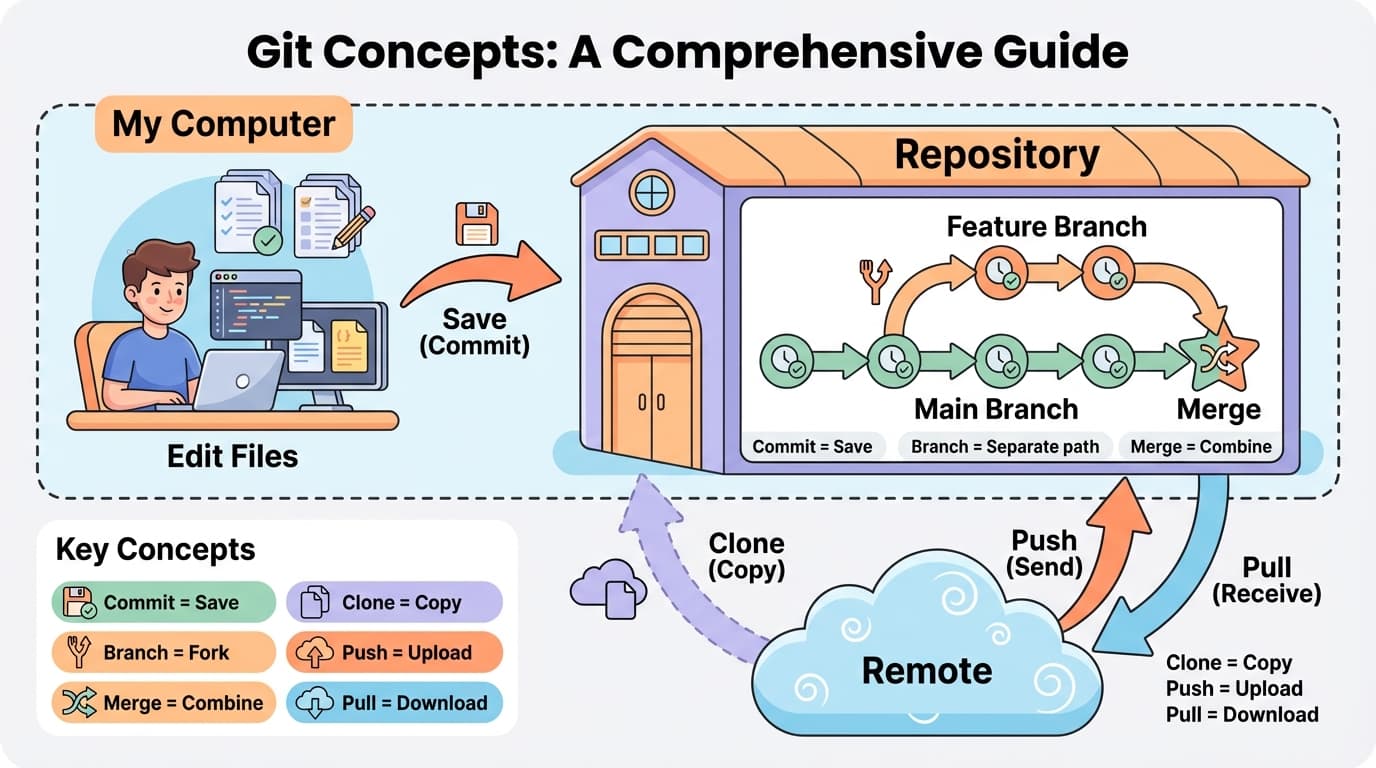
Git might feel unfamiliar at first. But the core is simple: Edit files, save, and send. Remember this, and you can use Git.