
- Authors

What is a File?
File = Digital Document
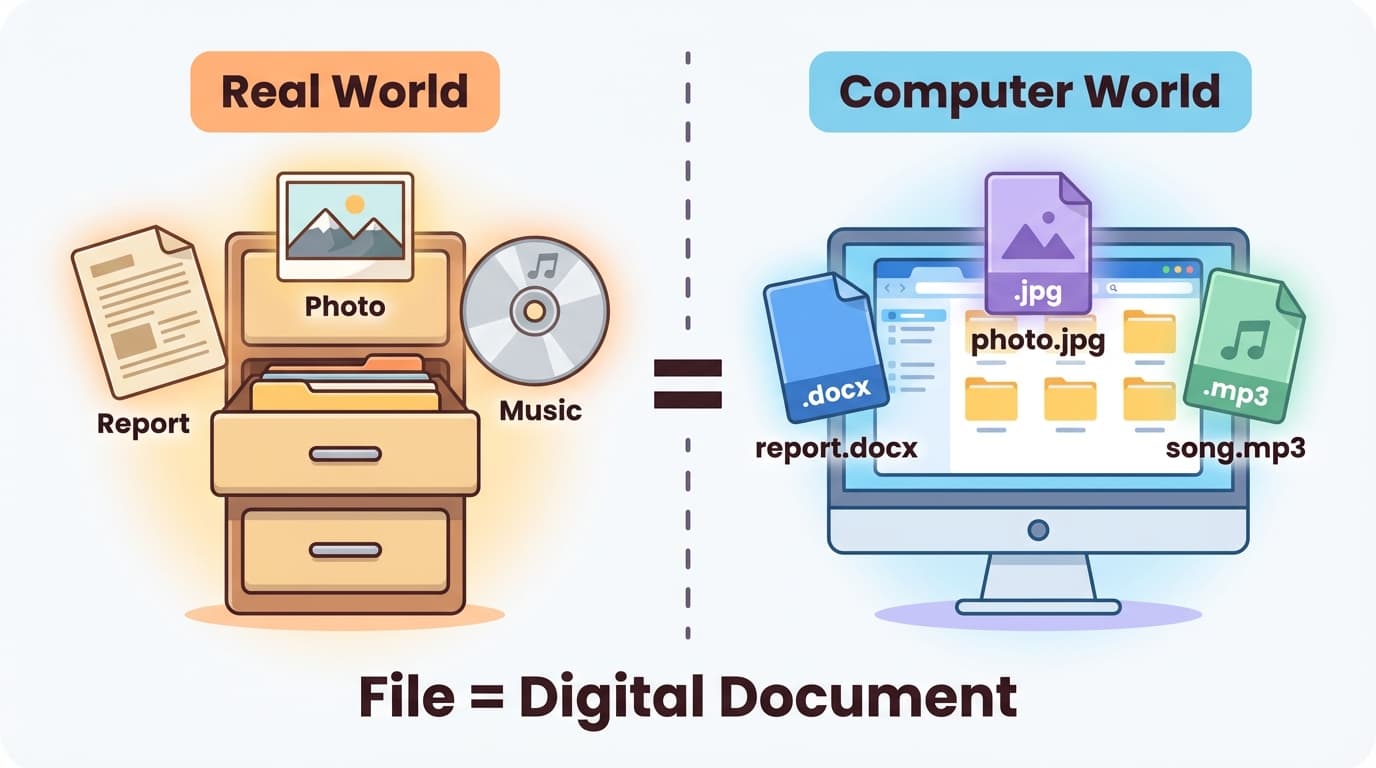
A file is a digital document that stores information inside a computer.
Think about the real world:
- When you write a report at work, you print it on paper and store it
- When you take a photo, you print it on photo paper and put it in an album
- When you have a favorite song, you store it on a CD
It's exactly the same with computers:
- When you write a report, you save it as a file →
report.docx - When you take a photo, you save it as a file →
vacation-photo.jpg - When you download music, you save it as a file →
good-song.mp3
If paper documents are how we store information in the real world, files are how we store information in the computer world.
What if Files Didn't Exist?
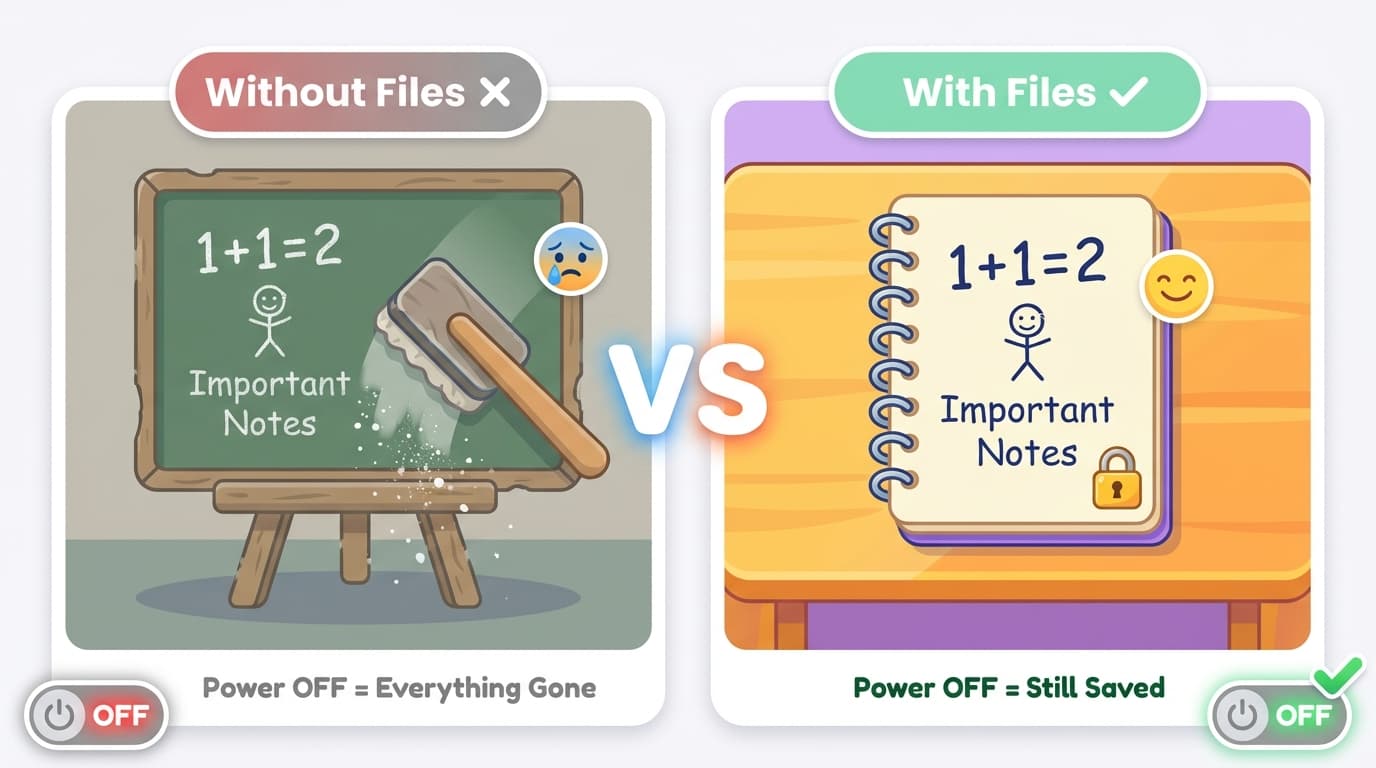
What if computers had no concept of files?
Everything would disappear when you turn off the power.
That document you were working on? Gone. The photo you took yesterday? Gone. The spreadsheet you spent 3 hours on? Gone.
Early computers actually worked this way. When you turned off the power, all data in memory vanished. It's like writing on a chalkboard, and someone comes and erases everything.
Files are like writing in a notebook instead of on a chalkboard. Even if you turn off the power or restart the computer, the files remain.
Key Point
Without files, a computer would be nothing more than a calculator. It can compute, but it can't store results anywhere. Files are what make computers truly useful tools.
What's Inside a File?
Text Files: Letters Are Stored Exactly As-Is
The simplest type of file is a text file (.txt). If you open Notepad, type "Hello", and save it, the file literally contains just the word "Hello" inside.
Hello
The weather is nice today.
See you tomorrow.
This is the entire content of the file. There's nothing hidden. The readable letters themselves are what's stored in the file.
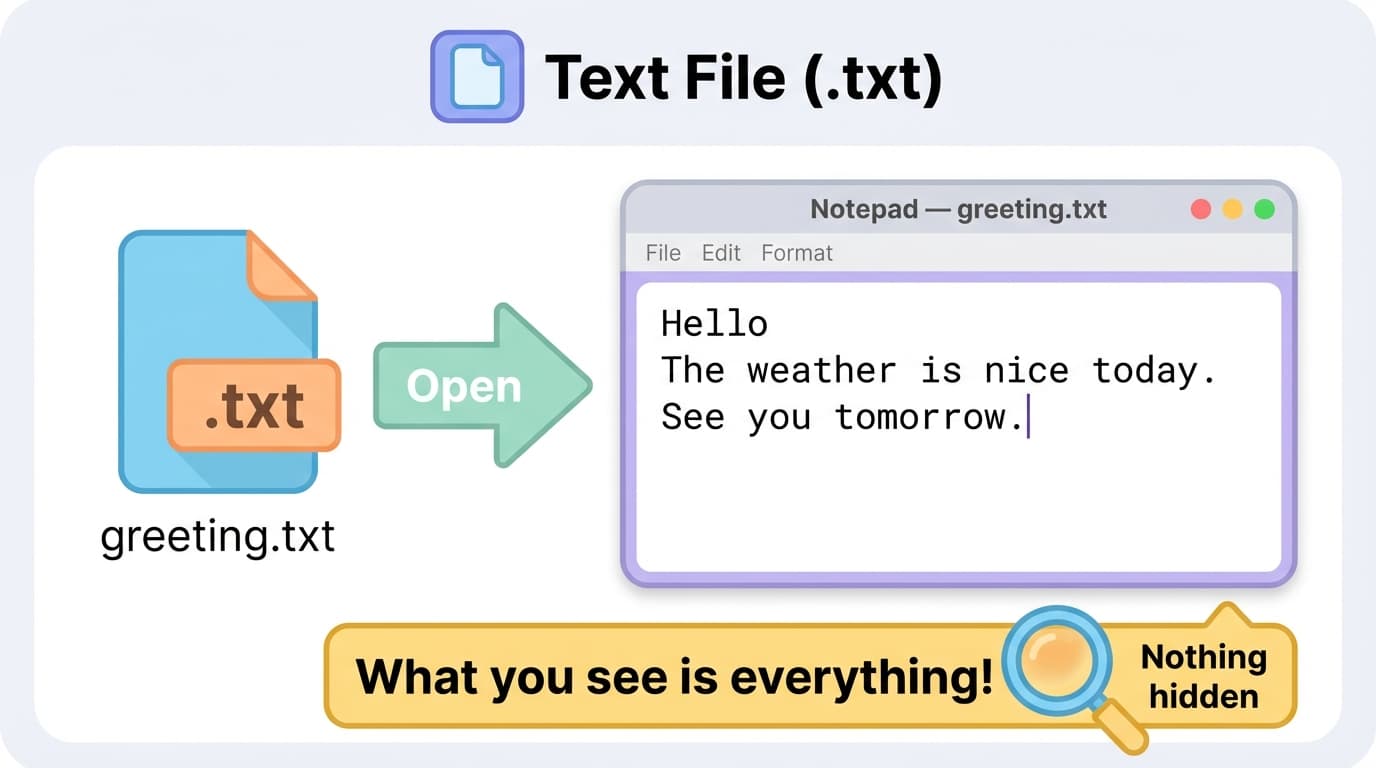
Image Files: Color Numbers Are Stored for Every Pixel
What about image files?
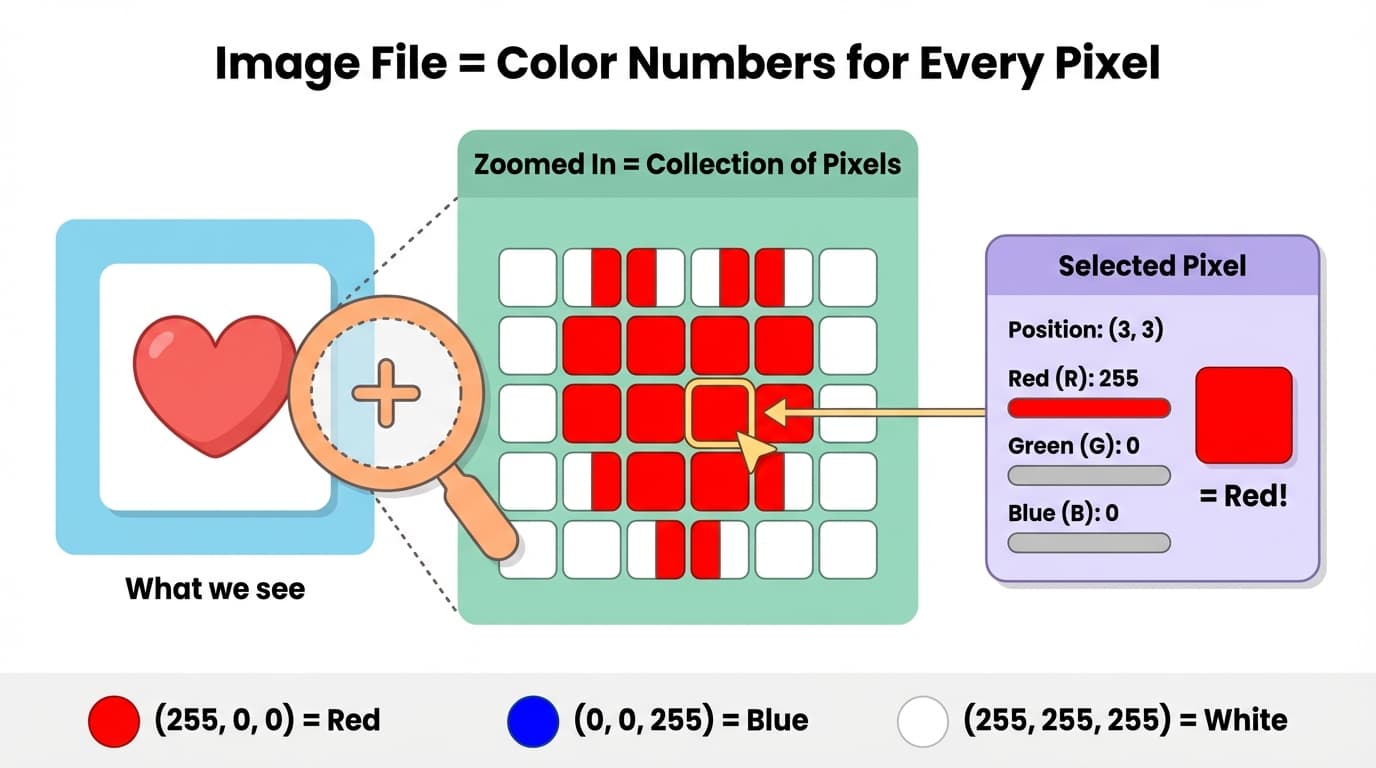
If you zoom into a smartphone screen with a magnifying glass, you'll see tiny dots packed closely together. Each of these dots is called a pixel.
Image files store the color information of every pixel as numbers.
Each pixel's color is expressed as a combination of three numbers — Red (R), Green (G), and Blue (B):
(255, 0, 0)     → Red      (Red only, at maximum)
(0, 0, 255)     → Blue     (Blue only, at maximum)
(255, 255, 255) → White    (All at maximum)
(0, 0, 0)       → Black    (All at zero)
For a tiny 4x4 image, the file stores the colors of all 16 dots like this:
Row 1: Red   Red   White White
Row 2: Red   Red   Red   White
Row 3: White Red   Red   Red
Row 4: White White Red   Red
A photo app reads these numbers one by one and paints dots on the screen. The result is what we see as an image.
A typical smartphone photo is about 12 million pixels (12 million dots). Since each dot has color numbers stored, you can now understand why photo files are so large.
Music Files: Volume Levels Are Stored Over Time
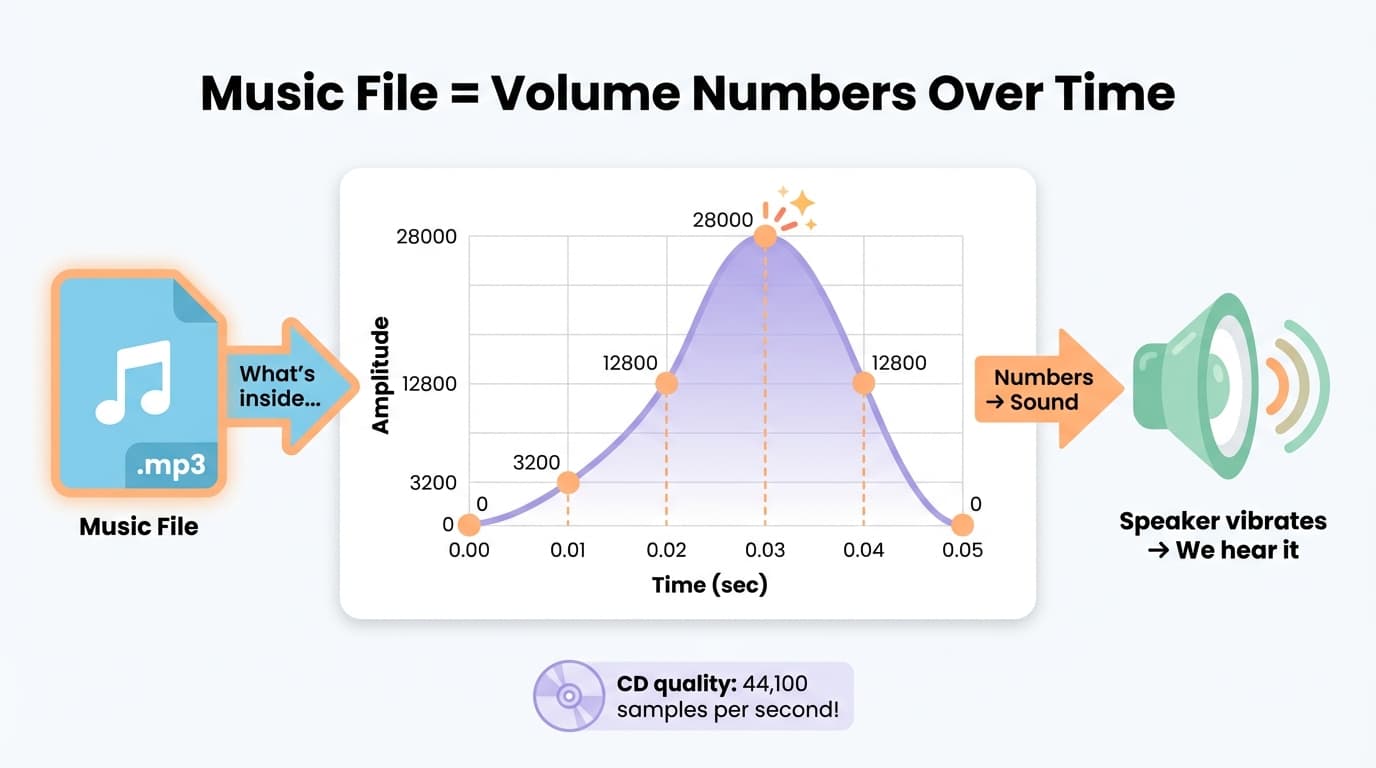
If images store color for each pixel (space), music stores volume levels over time.
Sound is vibration in the air. If you record the intensity of this vibration at very short time intervals as numbers, you get a music file.
0.00 sec: 0      (silent)
0.01 sec: 3200   (sound begins)
0.02 sec: 12800  (getting louder)
0.03 sec: 28000  (loud)
0.04 sec: 12800  (getting quieter)
0.05 sec: 0      (silent again)
A music app reads these numbers in order and vibrates the speaker. Bigger numbers mean stronger vibrations, smaller numbers mean weaker ones. The result is what we hear as sound.
CD-quality music records volume levels 44,100 times per second. A 3-minute song contains about 8 million numbers.
In Summary
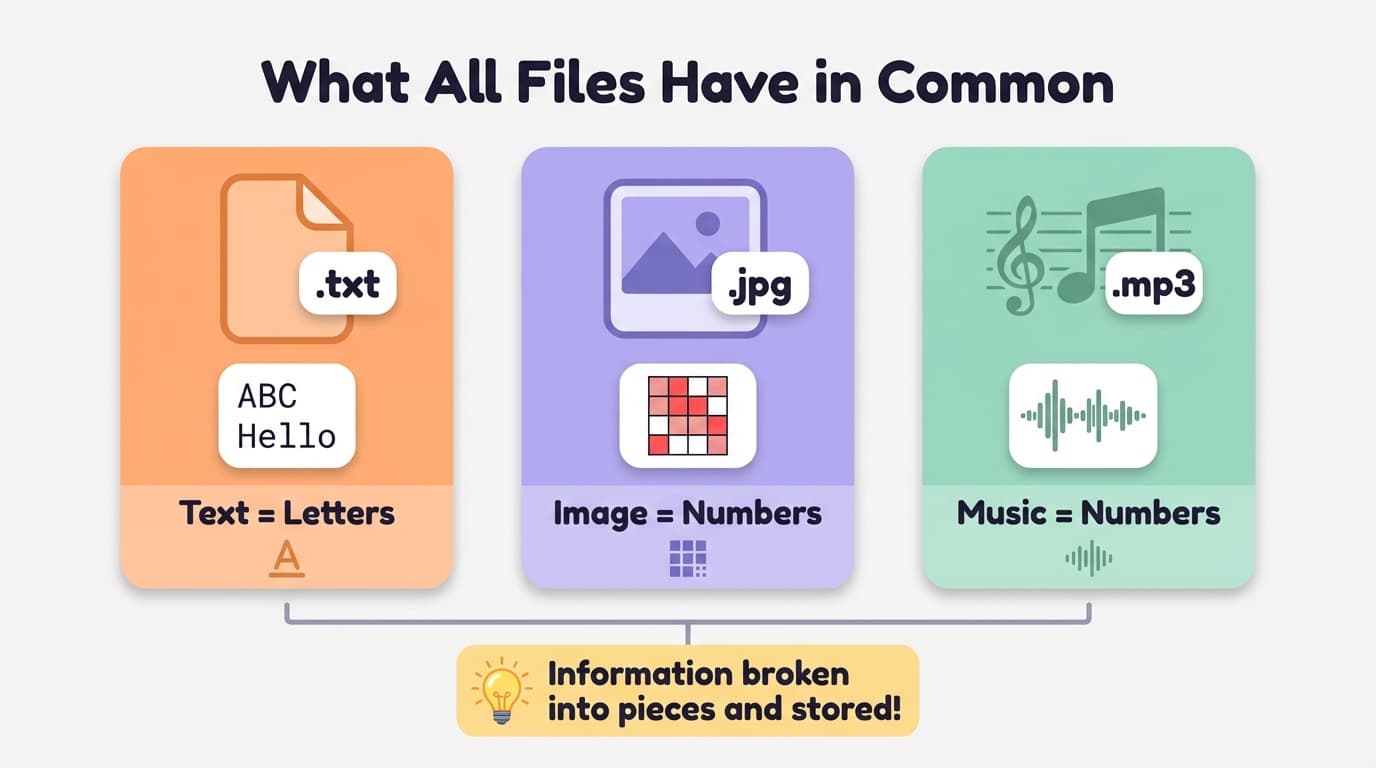
Do you see the pattern?
Text files: Letters are stored in order
Image files: Color numbers are stored for every pixel
Music files: Volume numbers are stored over time
Video files: Images (frames) + sound combined together
The principle is the same for all. Information is broken into small pieces and stored as numbers.
Key Point
All files ultimately contain either letters or numbers. Text files contain letters; image files contain numbers. Programs read these letters and numbers and display them on screen.
Formats and Extensions
Format = The Way a File Is Saved
Now you know that files contain letters or numbers inside. But the same information can be saved in different ways.
This is called a format.
Any Program That Knows the Format Can Open It
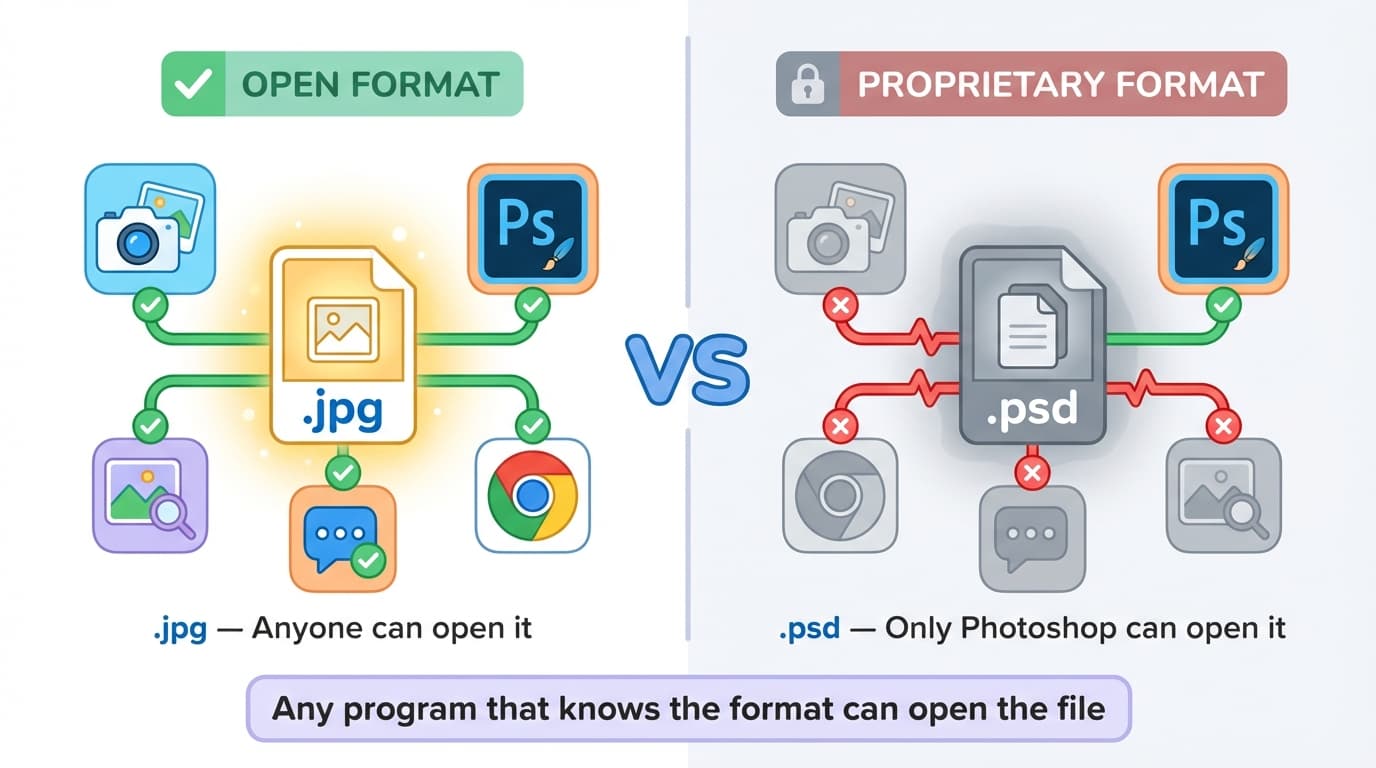
If a program knows the file's format (how it's saved), it can open that file.
This is a really important concept.
For example, image files (.jpg) have public rules for "how to store pixel color information." That's why:
- You can open them with a photo app
- You can open them with Photoshop
- You can open them with Chrome browser
- You can view them in messaging apps
This is because many programs understand the JPG format.
But what about Photoshop-only files (.psd)?
When Photoshop works, it needs to save complex information like layers, masks, and filter effects. It saves this information in Photoshop's own format (PSD).
.jpg file  → Photo app, Photoshop, Chrome, messaging apps — all can open it (open format)
.psd file  → Only Photoshop can properly open it (proprietary format)
It's not that the file is special — it's just that fewer programs know how to read that format.
So what happens if you open an image file with Notepad?
ÿØÿà JFIF ÿá Exif II* ÈÒ§ü¼ñ...
You get garbled characters. Because Notepad is a program that only understands text format. The file isn't broken — it's like showing a Korean letter to someone who doesn't read Korean.
Extension = A Name Tag for the Format
The .txt, .jpg, .mp3 at the end of file names are called extensions.
An extension is a label that says "this file is in this format".
The computer looks at the extension to decide which program to open it with:
report.docx      → Open with MS Word
vacation-photo.jpg → Open with Photo viewer
good-song.mp3    → Open with Music app
This is why the right program opens automatically when you double-click a file — it's because of the extension.
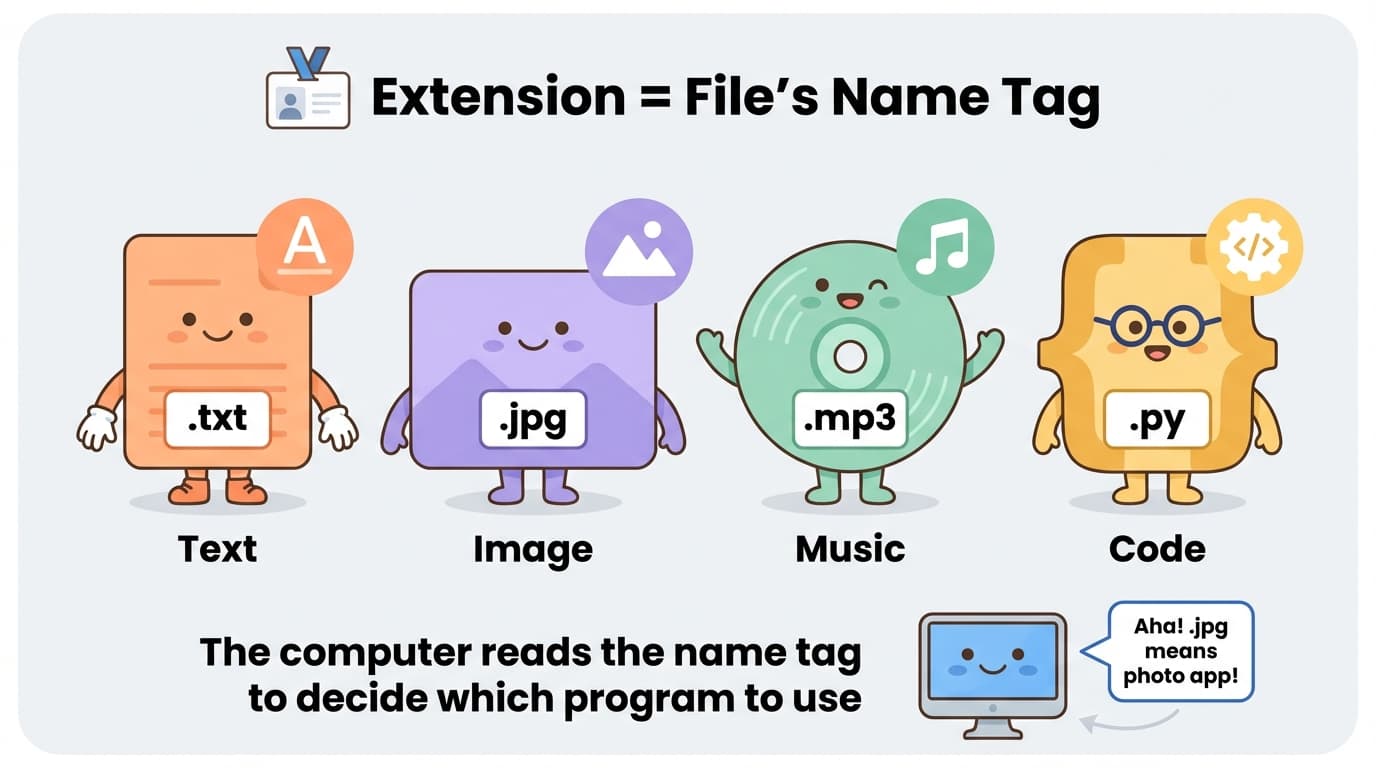
Note: Changing the extension doesn't change the file. If you rename photo.jpg to photo.txt, the number data inside stays the same. The computer will just try to open it with Notepad, and you'll see garbled characters.
Key Point
- Format = the way a file is saved. Any program that knows the format can open it
- Extension = a label for the format. The computer uses it to decide which program to open
- Changing the extension doesn't change the file's contents
Types of Text Formats
They're All Text Files Despite Different Extensions
When you start programming, you'll encounter various extensions like .json, .md, .csv, .html, .py.
These names might seem unfamiliar and special, but they're all text files. Open them with Notepad and you'll see readable text.
The only difference is the rules (conventions) for how text is written.
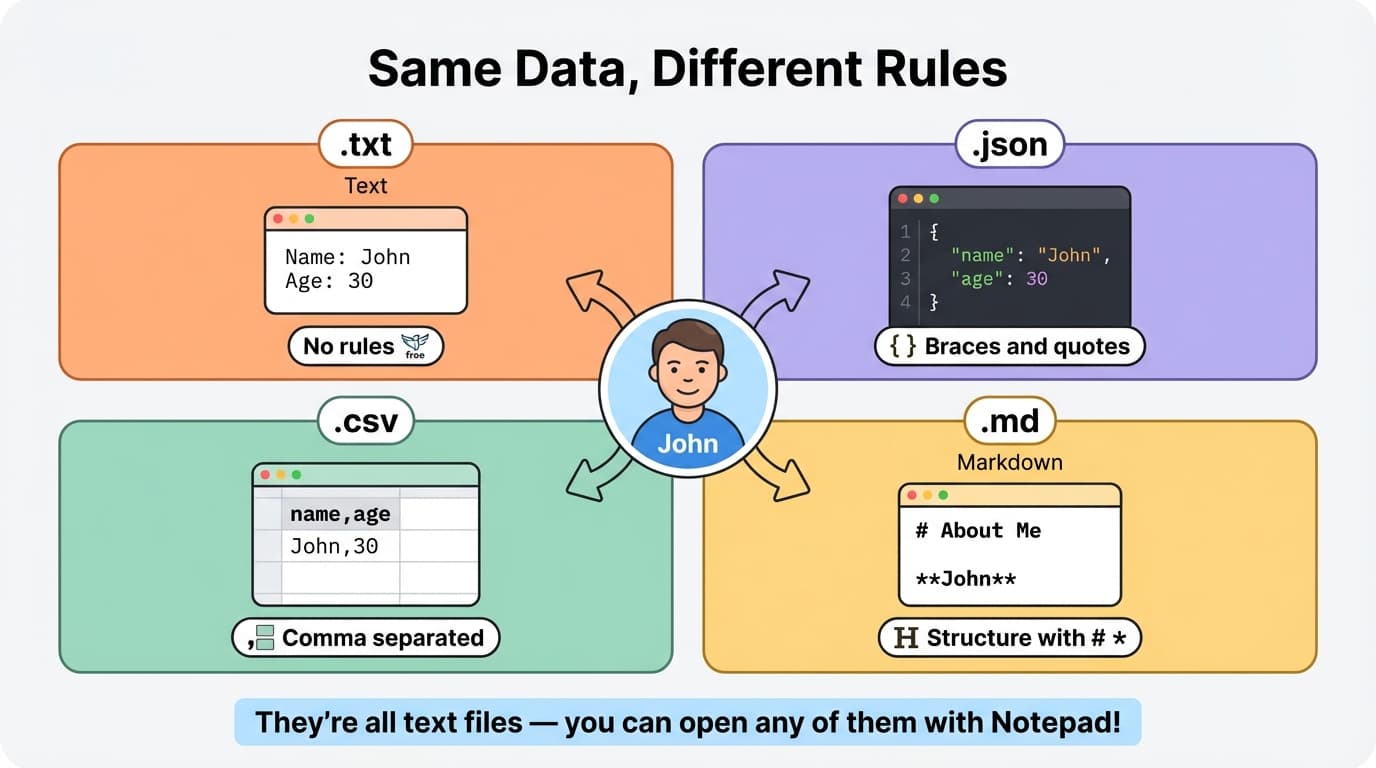
The Same Information in Different Formats
Text file (.txt) — no rules:
Name is John, age 30. Lives in Seoul.
JSON file (.json) — organized with curly braces and quotes:
{
    "name": "John",
    "age": 30,
    "city": "Seoul"
}
CSV file (.csv) — separated by commas:
name,age,city
John,30,Seoul
Jane,25,Busan
Markdown file (.md) — structured with # and *:
# About Me

My name is John.

## Basic Info
- Age: 30
- City: Seoul
They all contain the same information. Name, age, city. The difference is just the convention for arranging the text.
Why So Many Different Formats?
Because they serve different purposes:
- JSON: convenient for programs to exchange data (clear structure)
- CSV: convenient for table-format data (comma-separated columns)
- Markdown: convenient for writing clean documents (this document is a .md file!)
- HTML: used by web browsers to render pages
- Python (.py): used to write code that computers can execute
Key Point
Regardless of the extension, if you can open it with Notepad and see readable text, it's a text file. .json, .md, .csv, .py, .html are all text files. Only the text arrangement rules differ.
What is a Program?
Files Alone Don't Do Anything
We said files are a way to store information. But just storing things doesn't make anything happen.
Even if a drawer is full of documents, they're useless if nobody takes them out and reads them, right?
A program is the "worker" that does things with files.
A program is a set of rules (logic) that says "when this file comes in, process it this way."
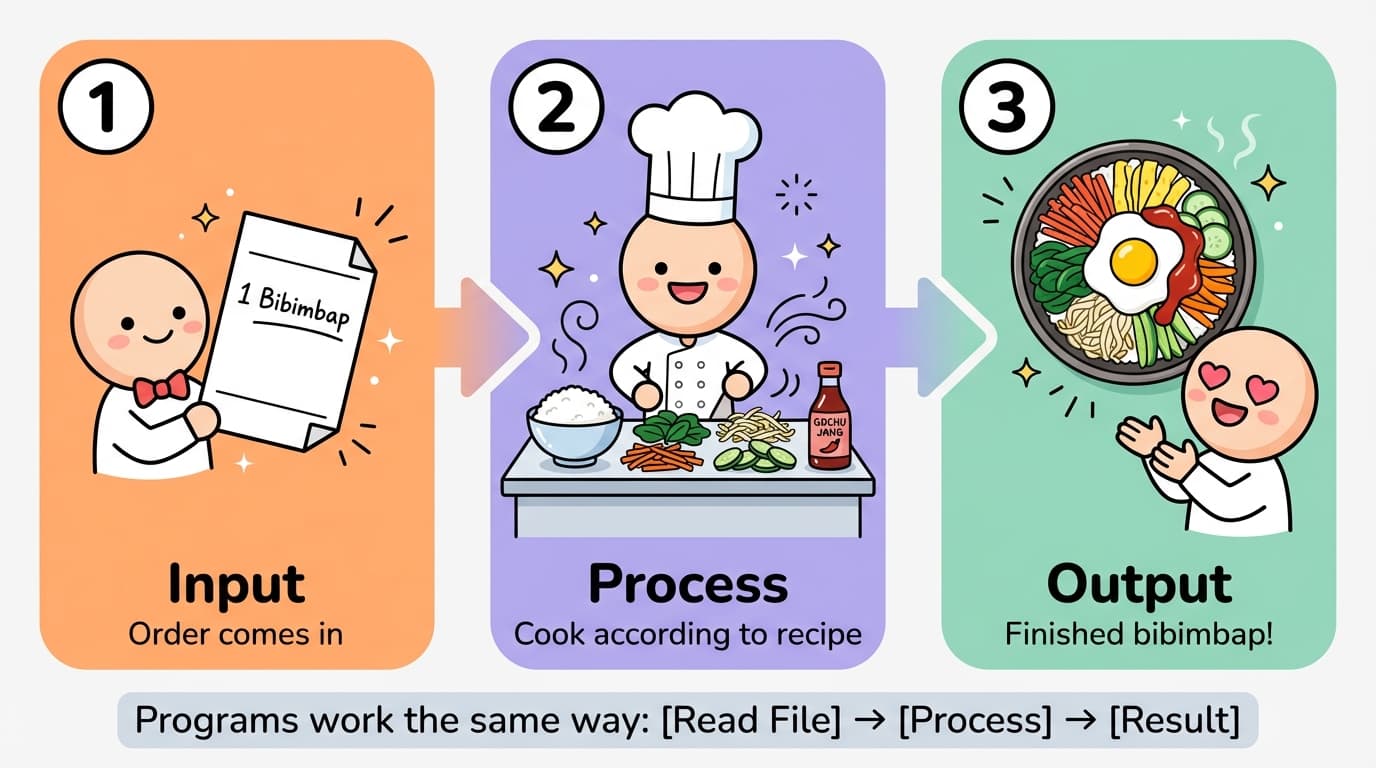
Think of a restaurant chef:
- An order comes in → "1 bibimbap" (this is the input)
- The chef cooks according to the recipe → cook rice, chop vegetables, mix (this is the processing logic)
- A finished bibimbap comes out (this is the output)
Every program follows this structure:
[Read from file] → [Process] → [Result]
| Program | Read | Process | Result |
|---|---|---|---|
| Photo App | Pixel numbers from image file | Convert numbers to colors | Display photo on screen |
| Chrome Browser | HTML text file | Interpret tags | Display beautiful website |
| Excel | Numbers from CSV file | Calculate with formulas | Display tables and results |
| Music App | Numbers from music file | Convert numbers to sound signals | Play music through speakers |
How Does It Actually Work?
Tables alone might not give you a clear picture, so let's walk through two examples step by step.
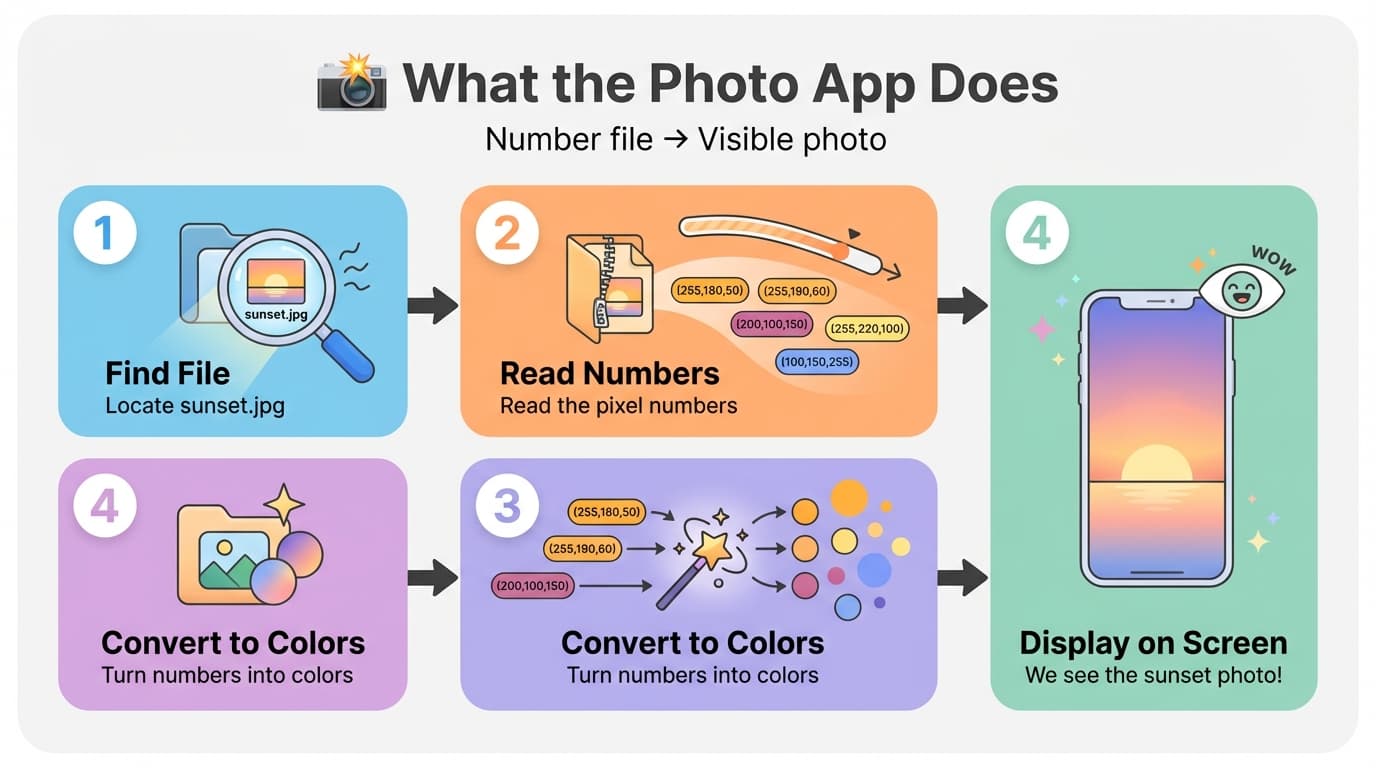
Example 1: Opening a Photo with the Photo App
The moment you tap a photo on your smartphone, here's what happens inside:
Step 1: Find the File
   The photo app locates the "sunset.jpg" file.

Step 2: Read the File
   It opens the file and reads the numbers inside.
   → (255, 180, 50), (255, 190, 60), (200, 100, 150), ...

Step 3: Interpret the Numbers
   "First pixel is (255, 180, 50), so that's orange"
   "Second pixel is (255, 190, 60), so that's a lighter orange"
   → It interprets millions of pixels this way.

Step 4: Draw on Screen
   It fills each dot on the screen with the interpreted colors.
   → We see a sunset photo!
Remember what we learned earlier. Image files store color numbers for every pixel, right? The photo app's job is to read those numbers, convert them to actual colors, and display them on screen.
What's in the file is still just numbers. The photo app is the program that "processes those numbers into a visible photo."
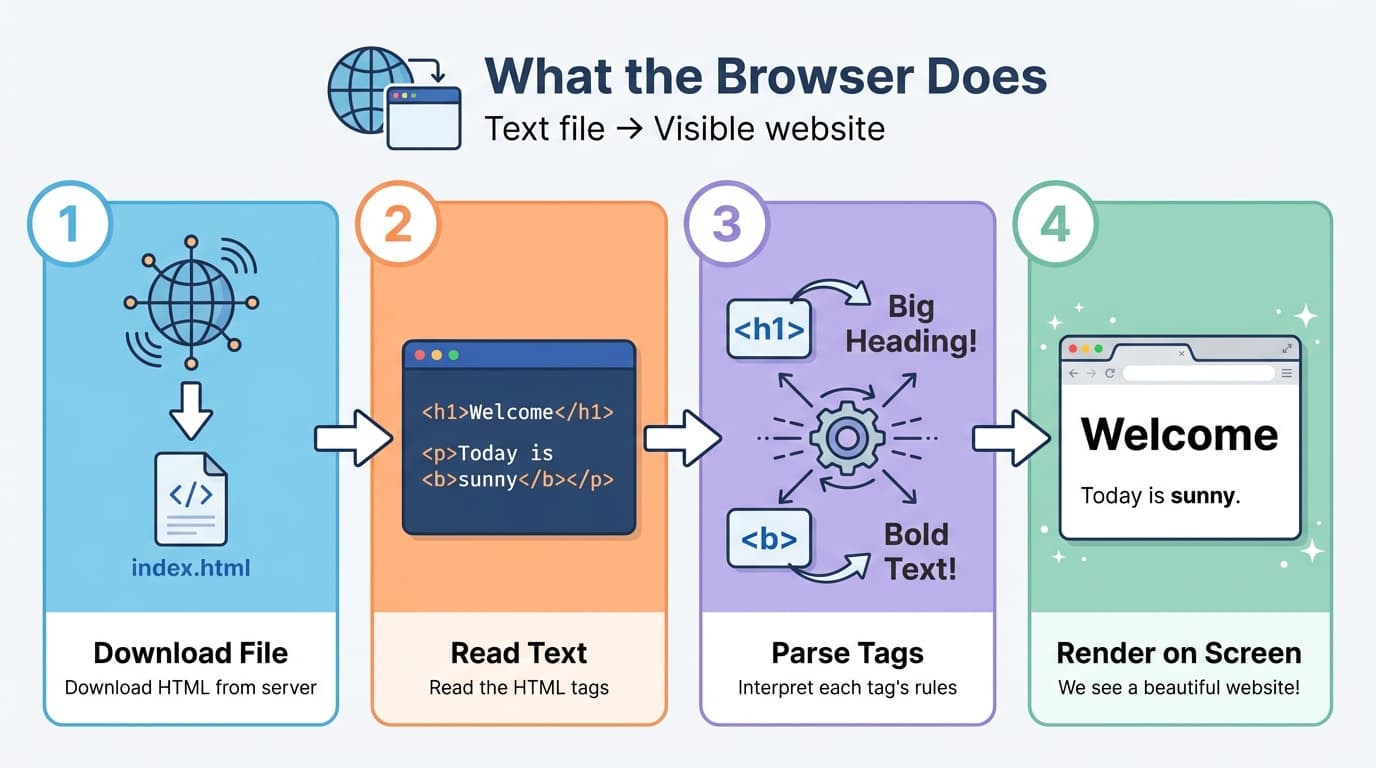
Example 2: Opening a Website with the Browser
When you enter a website address, the browser works like this:
Step 1: Download the File
   Download an HTML text file from the server.

Step 2: Read the File
   Open the file to find text like this:
   → <h1>Welcome</h1>
   → <p>Today's weather is <b>sunny</b>.</p>

Step 3: Interpret the Text
   "<h1> means big heading, so display it large and bold"
   "<b> means emphasis, so display it in bold"
   → Interpret according to each tag's rules.

Step 4: Draw on Screen
   Arrange the interpreted results nicely.
   → We see a clean website!
The beautiful website we see is originally just a text file. The browser is the program that reads and interprets that text, converting it into a beautiful display.
Do you see what both examples have in common?
- Read data from a file (whether numbers or text)
- Process it according to rules (convert to colors, interpret tags)
- Show the result (photo on screen, website on screen)
This is what every program does. Different programs process the same file differently. That's why a photo app shows pictures and a music app plays sounds.
Programs Are Files Too
Here's a fun fact: Programs themselves are files.
"Installing" an app on your smartphone means downloading a program file. "Deleting" an app means removing that program file.
And the core of program files — code is also a text file.
Regular text file (letter.txt):
Hello John,
Nice weather today.
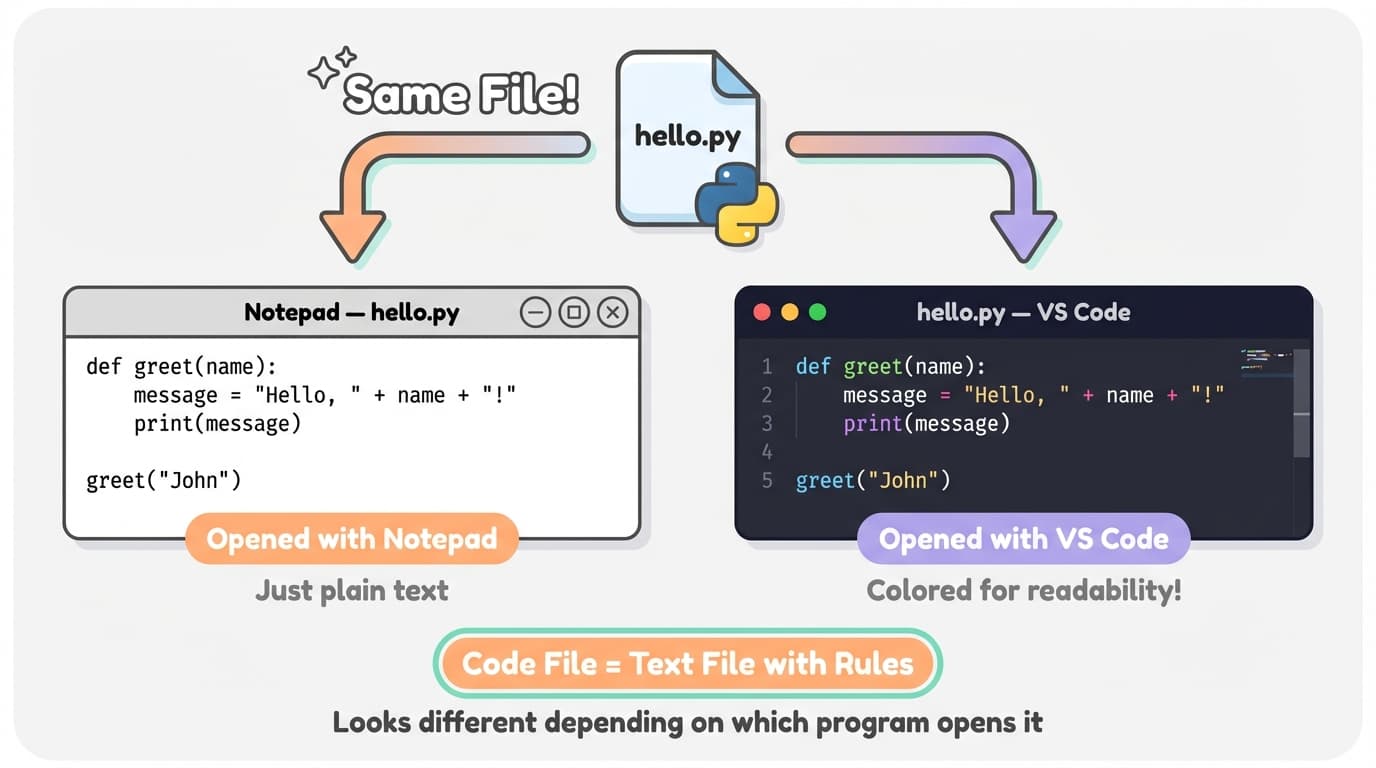
Code file (hello.py):
def greet(name):
    message = "Hello, " + name + "!"
    print(message)

greet("John")
Both are just letters. The difference is that code has strict rules (syntax). A regular letter can have some grammar mistakes and the reader still understands, but code won't work if even one rule is broken.
Open a code file with Notepad? You just see plain text. No colors, nothing special. Open it with a code editor (VS Code)? Same text, but colored to make it easier to read.
Same text file, but it looks different depending on which program you open it with.
Key Point
- Program = a set of rules that reads and processes files
- Code file = a text file with rules
- Every program's structure: Read file → Process → Result
Folders and Paths
Folder = A Box That Holds Files
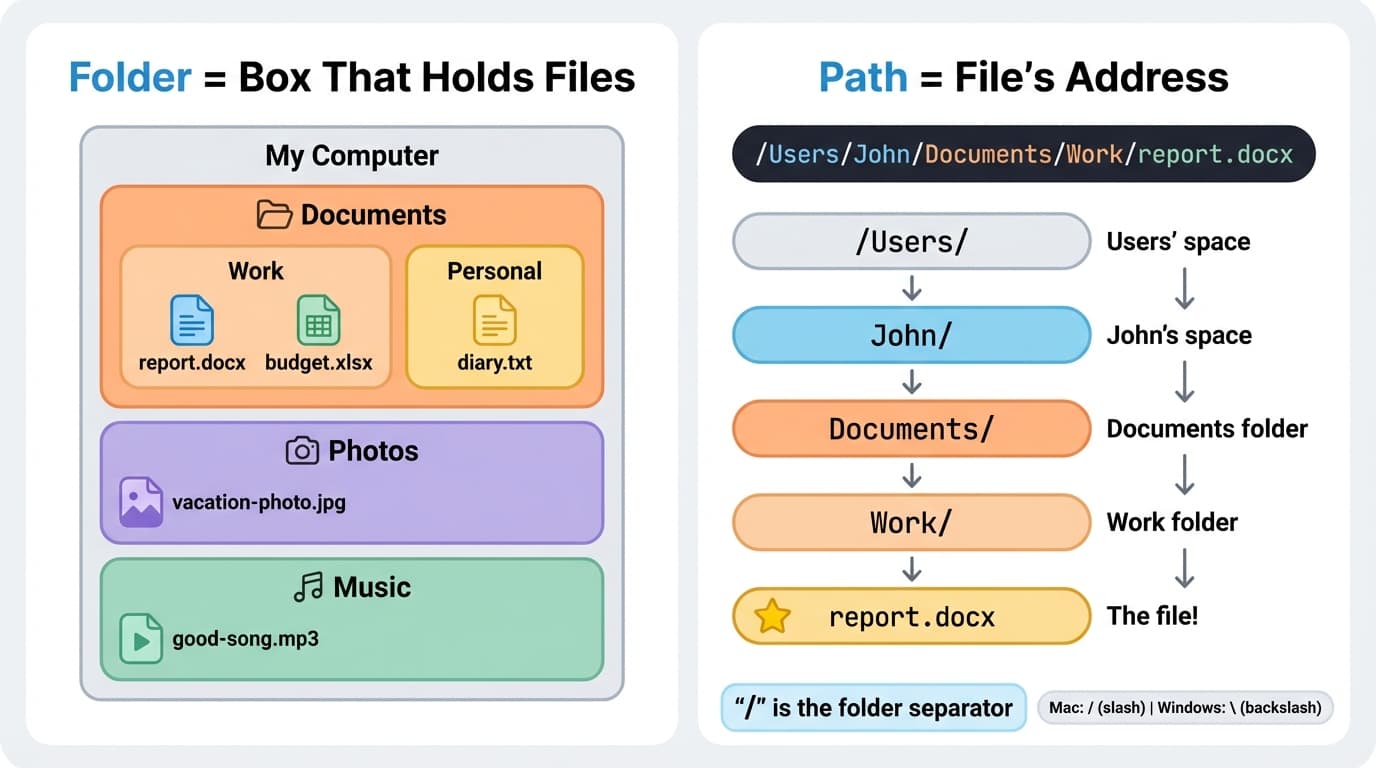
When you have lots of files, you need organization. In the real world, when you have lots of documents, you organize them in drawer compartments, right? On computers, you create folders to organize files.
My Computer/
├── Documents/
│   ├── Work/
│   │   ├── report.docx
│   │   └── budget.xlsx
│   └── Personal/
│       ├── diary.txt
│       └── travel-plan.docx
├── Photos/
│   ├── 2025/
│   │   └── vacation-photo.jpg
│   └── 2026/
│       └── newyear-photo.jpg
└── Music/
    └── good-song.mp3
You can put folders inside folders. It's like putting a small box inside a drawer, and another small box inside that box.
Path = A File's Address
A path is an address that tells you where a file is located.
In the real world, an address looks like this:
Country → State → City → Street → 123
A computer file path looks like this:
/Users/John/Documents/Work/report.docx
Breaking it down:
/Users/      → Users' space
  John/      → John's personal space
    Documents/ → Documents folder
      Work/    → Work folder
        report.docx → The file!
The slash (/) is the separator between folders.
Note: Mac/Linux uses forward slash (/), Windows uses backslash (\). The direction is different but the concept is exactly the same:
Mac:     /Users/John/Documents/report.docx
Windows: C:\Users\John\Documents\report.docx
Why Do You Need to Know Paths?
In everyday computer use, you can just click folders with a mouse, so you rarely need to type paths directly.
But when programming, it's different. Programs find files using text, not a mouse.
"Open the report file"              → ❌ Which report?
"/Users/John/Work/report.docx"      → ✅ Got it!
Key Point
- Folder: a box that organizes files (folders inside folders are possible)
- Path: a file's exact address (
/Users/John/Documents/report.docx)- Slash (/): the symbol that separates folders